Sensitive Data Protection
Overview
MCP Explorer automatically detects, encrypts, and redacts sensitive information in user chat messages and tool parameters. This protects passwords, API keys, tokens, and other secrets from accidental exposure.
Key Capabilities
🔍 Automatic Detection
Three-phase detection: regex patterns, heuristic scanning, and optional AI
🔐 AES-256 Encryption
All sensitive values encrypted before storage
👁️ Per-Value Reveal Toggles
Show/hide individual sensitive values on demand
🎨 Inline Badge UI
Clean, visual redaction matching app design
🔄 Reset on Reload
Reveal state resets when page reloads for security
⚙️ Configurable Keywords
Add custom sensitive field names
🤖 Optional AI Detection
Enable context-aware detection (disabled by default)
📊 Debug Mode
View detection reasons for troubleshooting
Detection Methods
Phase 1: Regex Pattern Matching (Default)
Always active, fast, and offline. No API costs or latency.
Detects sensitive values following keywords:
password,secret,token,keyapikey,api_key,api-key- Custom keywords from your configuration
Supported patterns:
With quotes:
  secret: "value"
password 'value'
token "value"
Without quotes:
  set key of VALUE
password: VALUE
token = VALUE
apikey VALUE
Flexible separators:
- Colon (
:) - Equals (
=) - Keyword “of”
- Space
Example:
Input:
set the api_key to abc123xyz
Detected:abc123xyz
Displayed:set the api_key to [●●●●●● 👁️]
Phase 2: Heuristic Token Scanning
Composition-based analysis that flags tokens without preceding keywords.
Flags tokens that:
- Contain mixed letters + digits (e.g.,
abc123) - Contain special characters (e.g.,
_-@#$) - Are NOT pure numbers, GUIDs, URLs, or plain words
- Are NOT dates, times, ordinals, or contractions
Example:
Input:
The key is ghp_ABC123xyz456def
Detected:ghp_ABC123xyz456def(no keyword, but looks like a token)
Displayed:The key is [●●●●●●●● 👁️]
Advantages:
- Catches unprefixed API keys
- Zero latency (fully local)
- No API costs
- Minimal false positives with smart exclusions
Phase 3: AI-Enhanced Detection (Optional)
Context-aware detection using your selected LLM model.
Disabled by default—must be explicitly enabled in Sensitive Fields settings.
How it works:
- Message is sent to LLM for analysis
- LLM identifies sensitive segments based on context
- Results are filtered by strictness setting
- Combined with regex + heuristic results
Strictness levels:
- Conservative: Only accept AI segments with configured keywords
- Balanced: Accept segments with keywords or heuristic-sensitive tokens
- Aggressive: Accept all AI-identified segments (higher recall, more false positives)
Pros:
- Smarter detection without specific keywords
- Understands context and intent
- Can catch edge cases
Cons:
- Adds latency (1-3 seconds)
- Requires API calls (costs money)
- Message sent to provider before encryption
- Privacy consideration: provider sees raw message
📸 Screenshot:
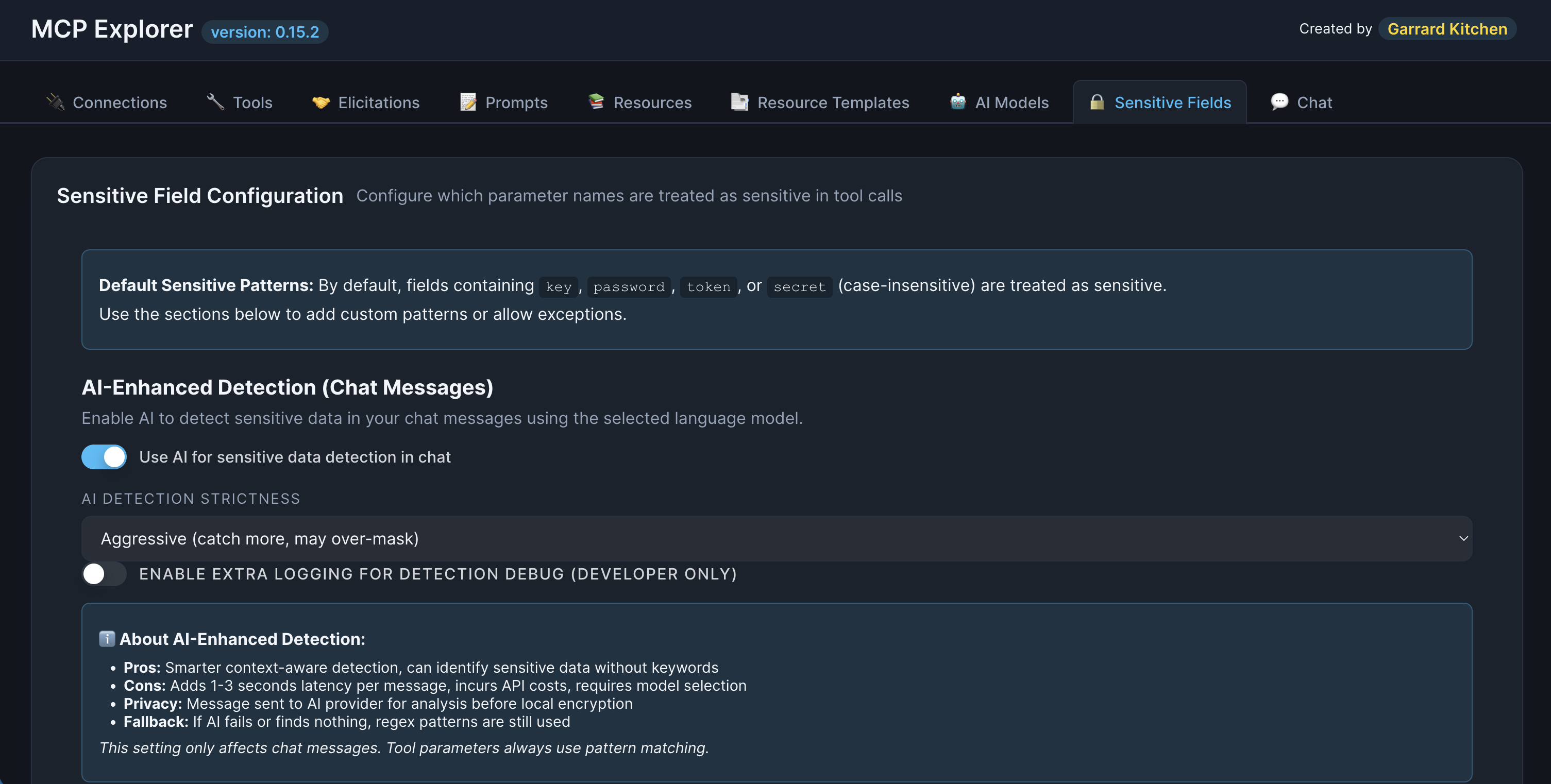
Description: Show the Sensitive Fields configuration page with the AI detection toggle and strictness dropdown
warning: Privacy Note: When AI detection is enabled, your message is sent to the LLM provider for analysis before local encryption. Consider this when handling highly confidential data.
Visual Redaction
Inline Badges
Sensitive values are displayed as badge-style pills that blend with the app’s design.
Badge format:
[●●●●●●●● 👁️]
Features:
- Clean, non-intrusive appearance
- Consistent with app aesthetic
- Clear indication of hidden content
- One-click reveal toggle
📸 Screenshot:
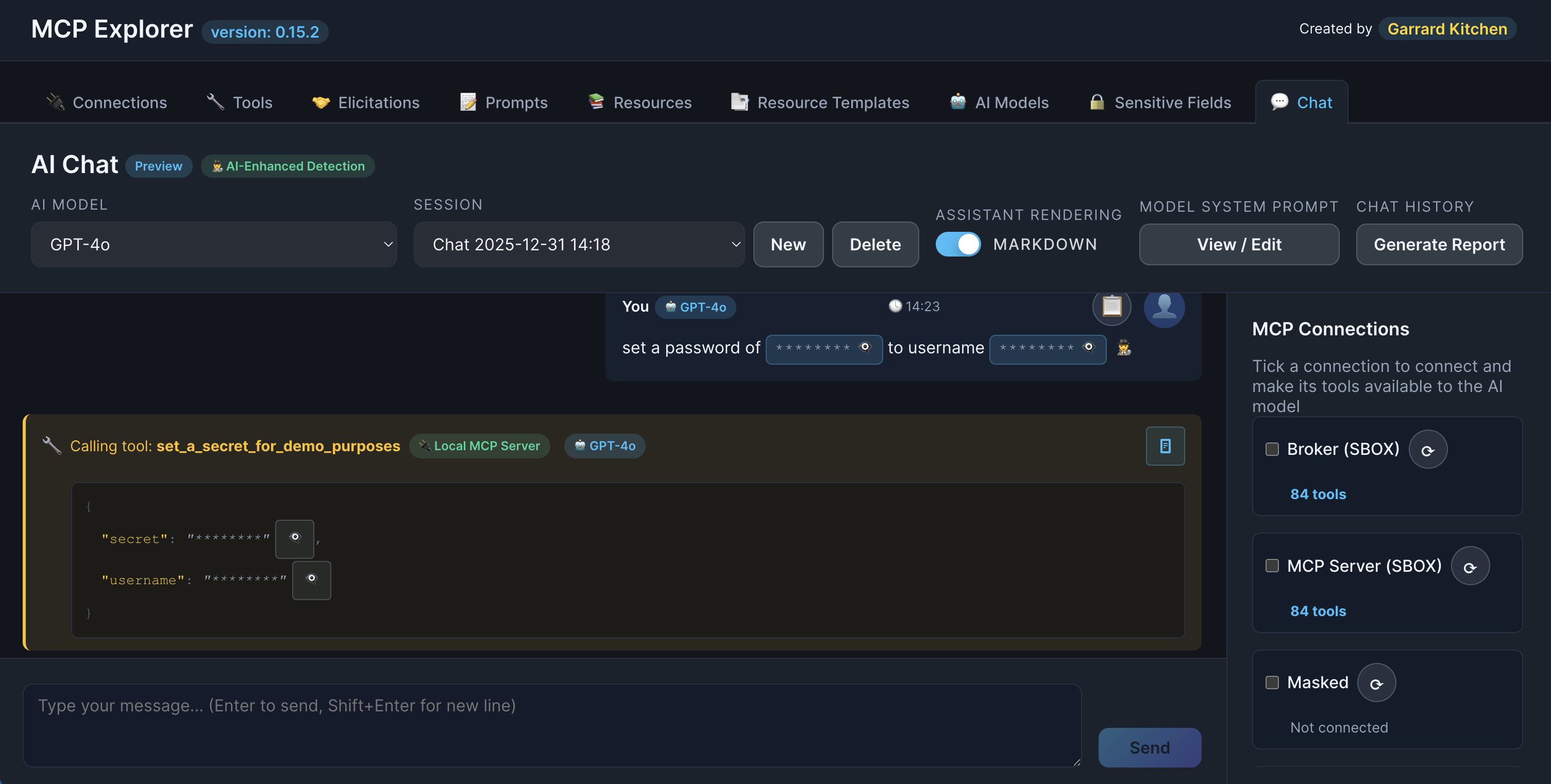
Description: Show a chat message or tool parameter with multiple sensitive values redacted as badges
Show/Hide Toggles
Each sensitive value has its own reveal button.
Eye icon states:
- 👁️ (open eye): Value is hidden (default)
- 👁️🗨️ (eye in speech bubble): Value is revealed
How to use:
- Click the eye icon on a redacted badge
- The sensitive value is temporarily revealed
- Click again to hide
Security:
- Each value toggles independently
- Reveal state resets on page reload
- No persistent “always show” option
📸 Screenshot:
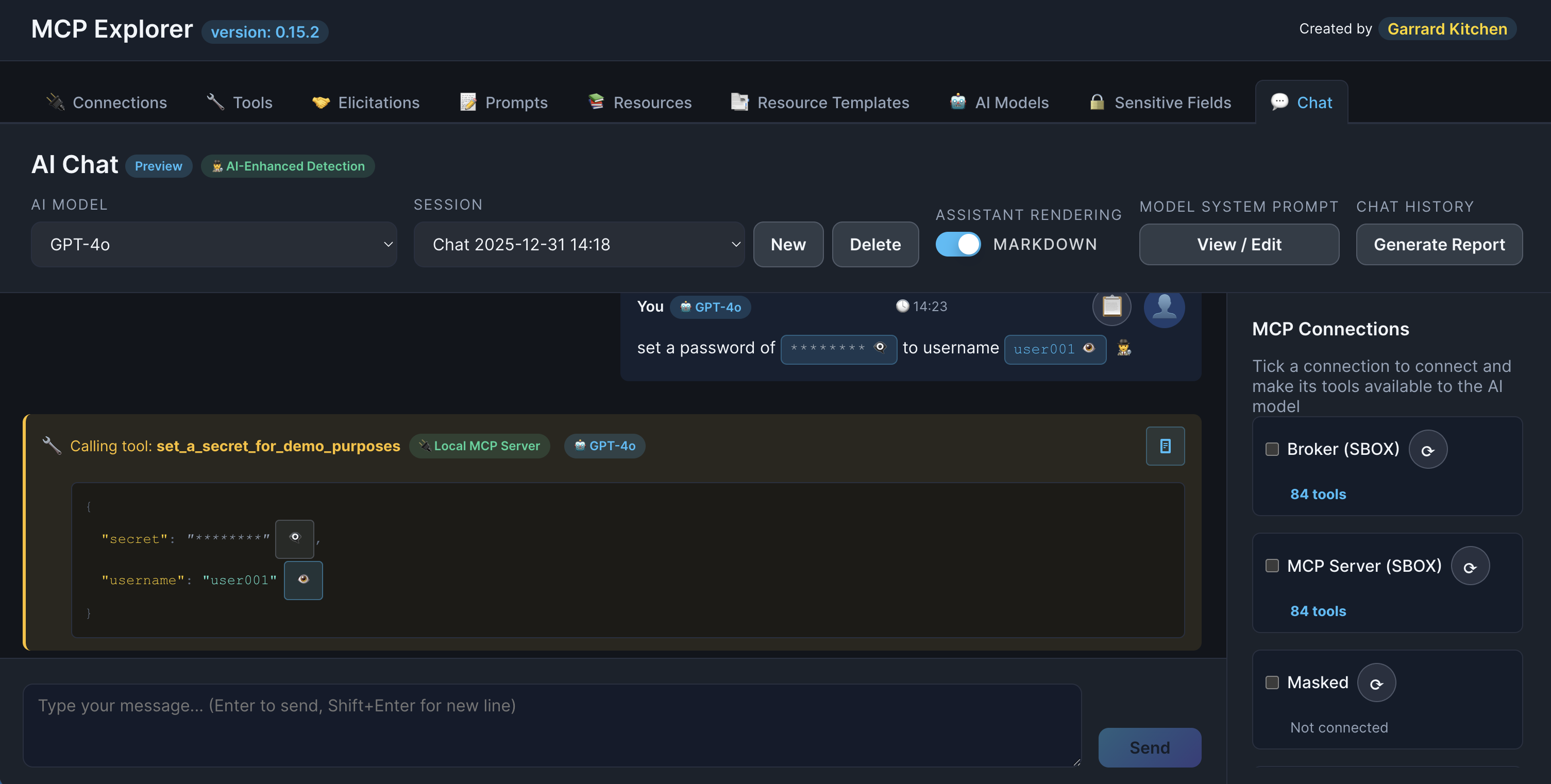
Description: Show a message with one sensitive value revealed and another still hidden
Configuration
Additional Sensitive Fields
Add custom keywords to detect organization-specific sensitive fields.
How to add:
- Navigate to Sensitive Fields configuration
- Find Additional Sensitive Fields section
- Enter custom keywords (e.g.,
ssn,credit_card,employee_id) - Save configuration
Examples:
ssn,social_securitycredit_card,card_numberauth_token,session_idemployee_id,account_number
📸 Screenshot:
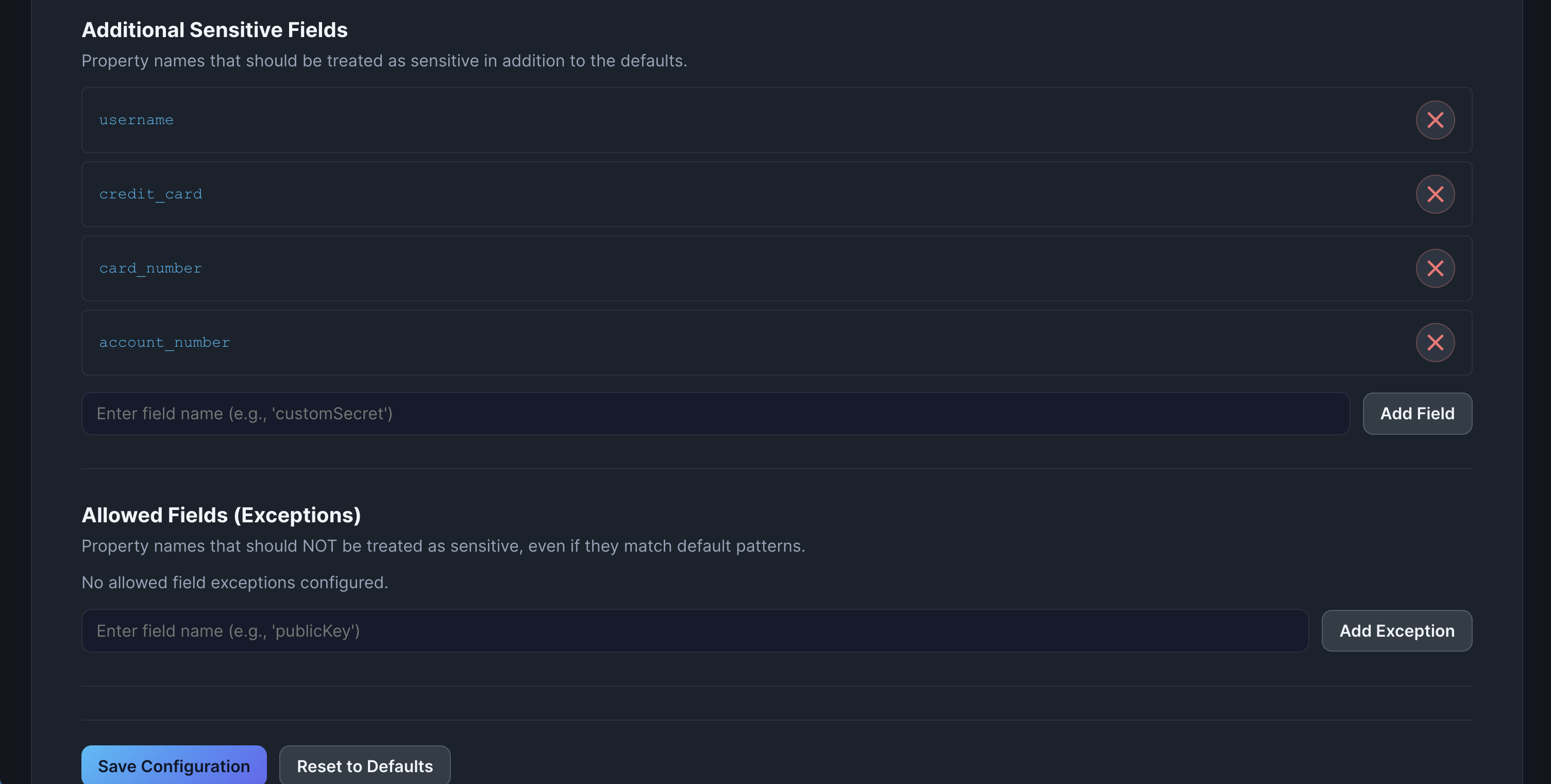
Description: Show the Additional Sensitive Fields configuration with several custom keywords added
Allow/Deny Lists
Fine-tune detection to avoid false positives.
Allow List: Keywords that should NOT trigger detection
- Example:
public_key,key_name,primary_key(if these are not secrets)
Deny List: Keywords that should ALWAYS trigger detection
- Example: Company-specific field names like
sfdc_token,internal_secret
How to configure:
- Navigate to Sensitive Fields settings
- Add keywords to Allow or Deny lists
- Save configuration
- Detection now respects these rules
AI Detection Settings
Control AI-enhanced detection behavior.
Settings:
- Enable AI Detection: Toggle on/off (default: off)
- Strictness: Conservative / Balanced / Aggressive
- Show Detection Debug: Enable detailed logging
Debug mode: When enabled, console logs show:
- Which tokens were flagged
- Which detection phase caught them
- Why they were classified as sensitive
- (Does NOT log raw secret values)
Use cases:
- Troubleshooting false positives
- Understanding detection behavior
- Tuning custom keywords
- Optimizing strictness settings
📸 Screenshot:

Description: Show the browser console with detection debug logs (can be simulated text)
Encrypted Storage
How It Works
When sensitive data is detected:
- Value is extracted from message
- Encrypted using AES-256
- Encrypted blob stored in session file
- Original value removed from plain text
- Redaction badge displayed in UI
Storage location:
%APPDATA%\McpExplorer\settings.json(Windows)- Equivalent locations on macOS/Linux
Encryption method:
- Algorithm: AES-256
- Platform: Windows DPAPI (Data Protection API)
- Scope: Current user account
info: Note: Encrypted values are tied to your user account and cannot be decrypted by others or on different machines.
What’s Encrypted
Chat messages:
- Sensitive segments in user messages
- Tool call parameter values
Connections:
- API keys
- Bearer tokens
- Client secrets
- Custom header values
Persistence:
- All encrypted data persists across sessions
- Reveal state does NOT persist (resets on reload)
Common Workflows
Testing Detection
- Type a message with a known sensitive value:
set password to test123 - Verify badge appears:
set password to [●●●●●● 👁️] - Click eye icon to reveal temporarily
- Refresh page and verify value is hidden again
Configuring Custom Keywords
- Navigate to Sensitive Fields settings
- Add organization-specific keywords (e.g.,
tenant_secret) - Test with a message containing your keyword:
set tenant_secret to xyz789 - Verify detection works
Enabling AI Detection
- Navigate to Sensitive Fields settings
- Toggle Enable AI Detection to ON
- Select Strictness level (start with Balanced)
- Test with a message lacking specific keywords:
Here's the access code: ABC-XYZ-123 - Verify AI detects “ABC-XYZ-123” even without “password” keyword
Troubleshooting False Positives
- Enable Show Detection Debug in settings
- Send a message that’s incorrectly flagged
- Review console logs to see why it was detected
- Add false positive to Allow List
- Test again to verify it’s no longer flagged
Best Practices
🔐 Keep AI Detection Off by Default
Only enable if regex+heuristic miss critical cases. Adds latency and costs.
🎯 Use Custom Keywords
Add organization-specific field names to catch internal secrets.
🧪 Test Detection
Send test messages to verify your configuration catches expected patterns.
📋 Document Sensitive Fields
Keep a list of your custom keywords for team reference.
🔄 Review Periodically
Audit what’s being detected and adjust Allow/Deny lists as needed.
🚫 Avoid Over-Redaction
If too many false positives, tune Allow List or reduce AI strictness.
👁️ Use Reveal Sparingly
Only reveal sensitive values when absolutely necessary.
Detection Examples
Example 1: API Key with Keyword
Input:
set api_key to sk_live_123abc456def
Detection:
- Phase 1: Regex matches “api_key” keyword
- Value:
sk_live_123abc456def
Output:
set api_key to [●●●●●●●● 👁️]
Example 2: Token Without Keyword
Input:
The access code is ghp_ABC123xyz
Detection:
- Phase 2: Heuristic flags
ghp_ABC123xyz(mixed chars) - No keyword, but token shape matches
Output:
The access code is [●●●●●●●● 👁️]
Example 3: Password with “of” Keyword
Input:
set password of abc123
Detection:
- Phase 1: Regex matches “password of” pattern
- Value:
abc123
Output:
set password of [●●●●●● 👁️]
Example 4: Quoted Secret
Input:
secret: "my-secret-value"
Detection:
- Phase 1: Regex matches “secret” with quotes
- Value:
my-secret-value
Output:
secret: [●●●●●●●● 👁️]
Troubleshooting
Sensitive Data Not Detected
Problem: Expected secrets shown in plain text
Solutions:
- Use recognized keywords (
password,key,token,secret) - Add custom keywords to Additional Sensitive Fields
- Enable AI detection for context-aware identification
- Use quotes around sensitive values for better regex matching
- Check Allow List isn’t blocking detection
Too Many False Positives
Problem: Normal text incorrectly flagged as sensitive
Solutions:
- Add false positives to Allow List
- Reduce AI strictness to Conservative
- Disable AI detection if causing issues
- Review heuristic exclusions (dates, times, GUIDs, etc.)
- Enable debug mode to understand why detection triggered
Revealed Value Won’t Hide
Problem: Clicking eye icon doesn’t hide value
Solutions:
- Refresh the page (forces reset)
- Check browser console for JavaScript errors
- Verify browser localStorage isn’t disabled
- Clear browser cache and retry
Encryption Failures
Problem: Error messages about encryption/decryption
Solutions:
- Ensure running on supported OS (Windows, macOS, Linux)
- Check application has file write permissions
- Verify
%APPDATA%\McpExplorerfolder exists - Try running as administrator (Windows)
- Review console for detailed error messages