On this page
Resources
Overview
Resources represent external data sources (files, databases, APIs) accessible via URI from MCP servers.
Key Capabilities
- 📚 Browse all resources from connected servers
- 🔍 Search by URI, name, or description
- ⭐ Mark favorites
- 📄 Read resource content
- 🔍 View metadata (URI, MIME type, description)
- 📋 Formatted JSON display
Using Resources
Step 1: Connect and Browse
- Navigate to 📚 Resources tab
- Connect to server with resource support
- Browse available resources
📸 Screenshot:
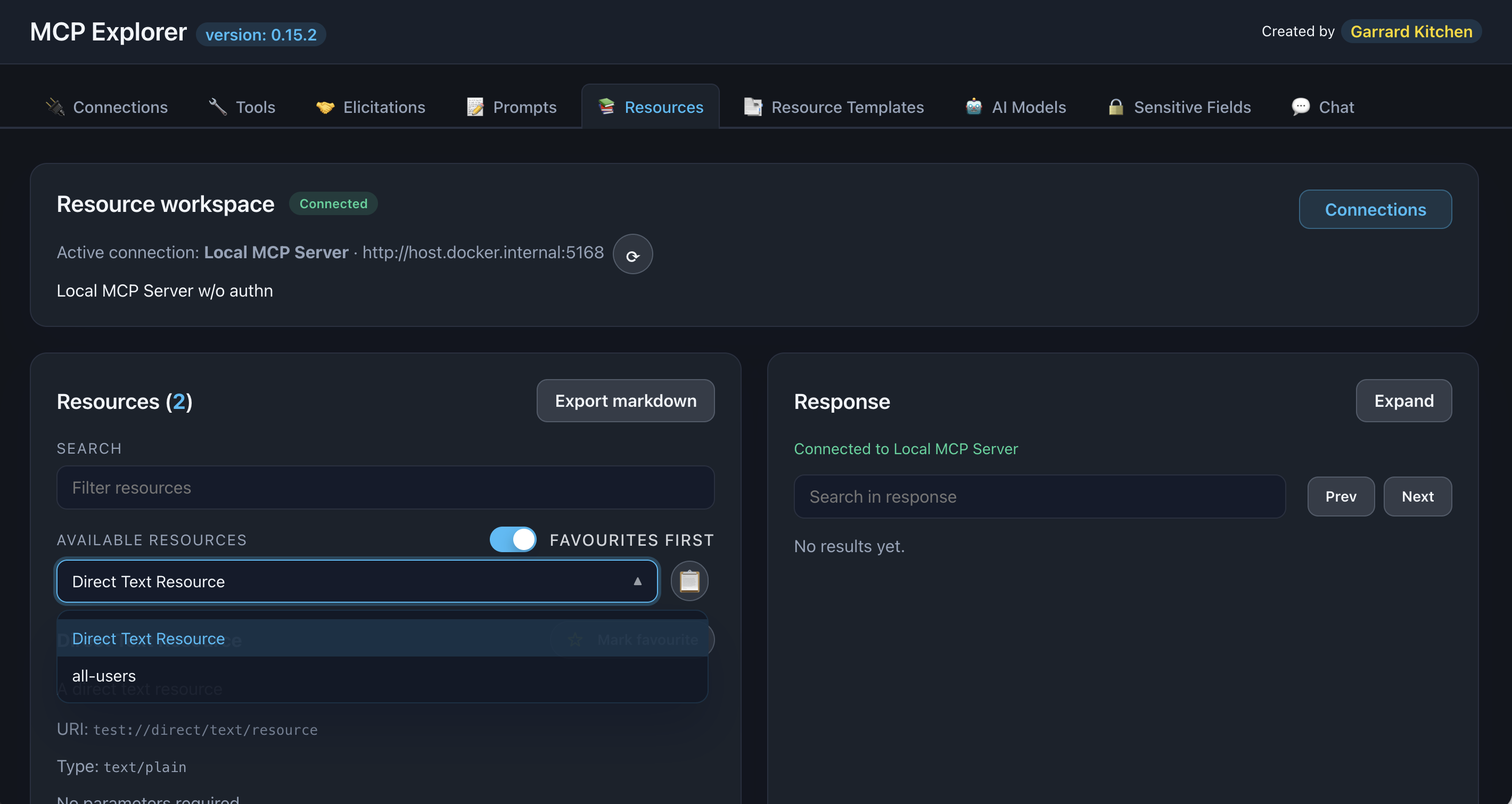
Description: Show the Resources tab with multiple resources listed
Step 2: Select a Resource
Click a resource to view details:
- URI: Resource location
- Name: Friendly identifier
- MIME Type: Content type (e.g.,
application/json,text/markdown) - Description: What the resource contains
📸 Screenshot:
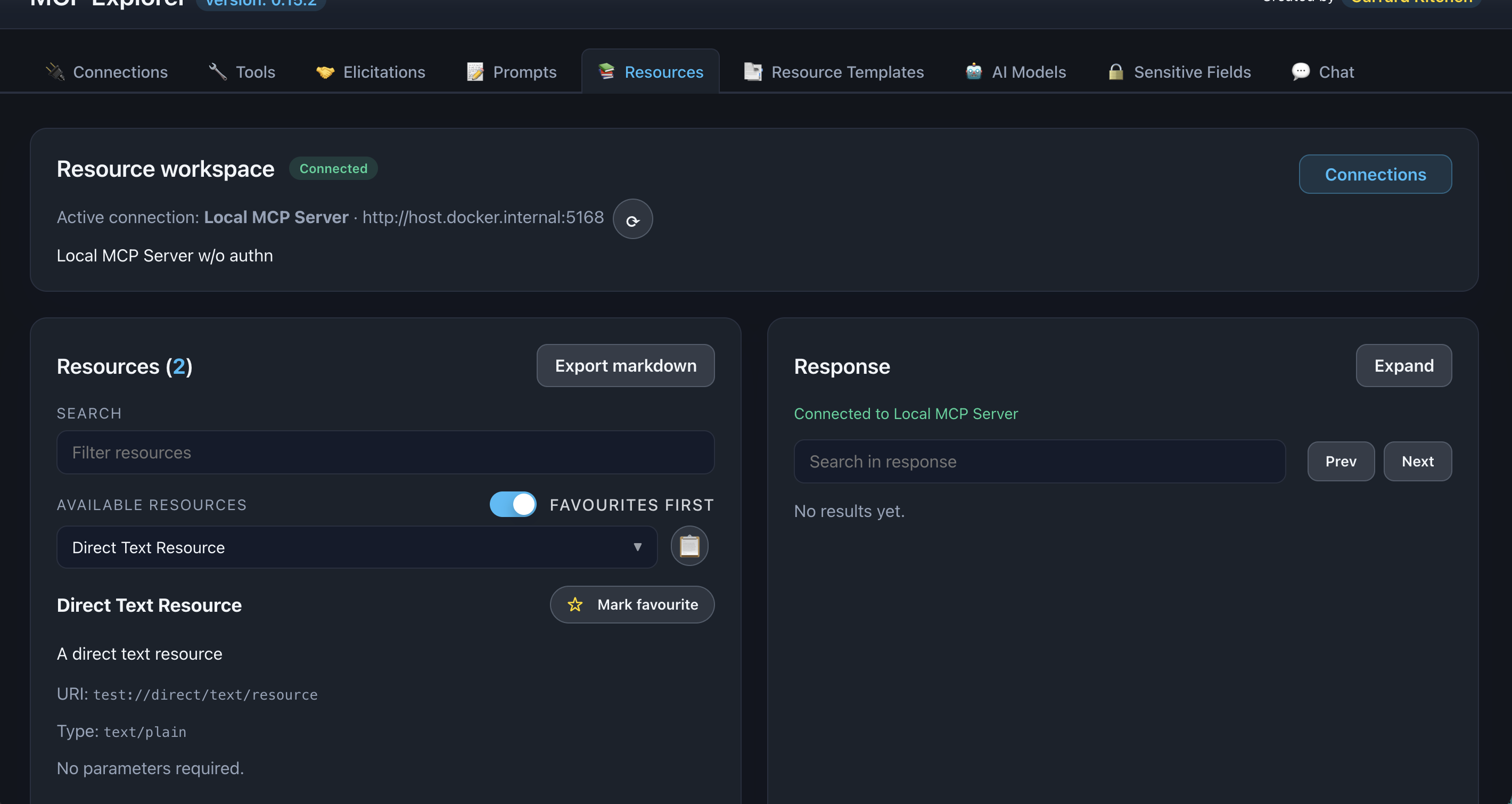
Description: Show a selected resource with its metadata displayed
Step 3: Read Resource
Click Read Resource to fetch the content.
Content is displayed as formatted, searchable JSON.
📸 Screenshot:
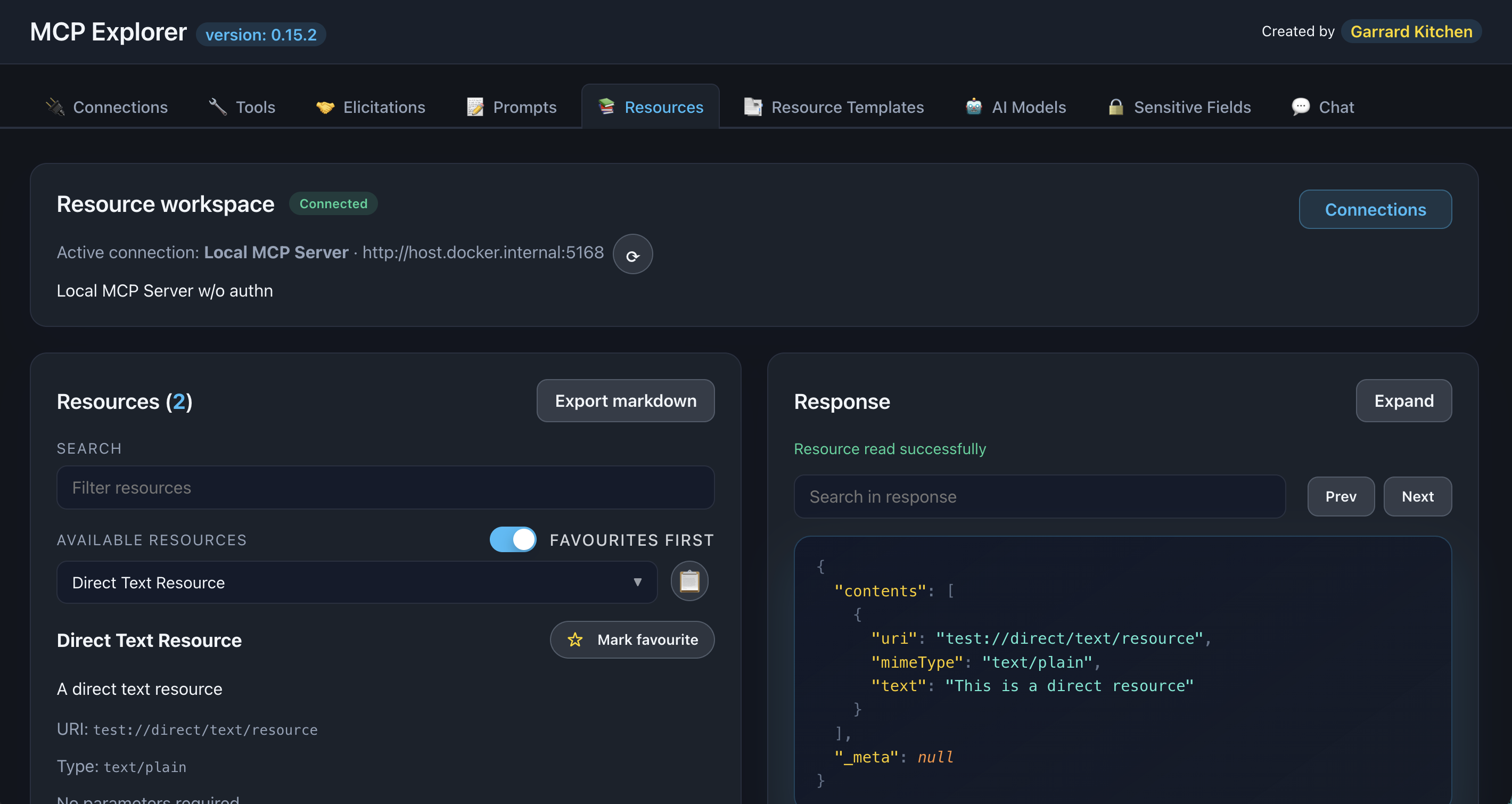
Description: Show resource content displayed with formatted JSON
Features
Search & Filter
Find resources by URI, name, or description.
Favorites
Mark frequently-accessed resources with the star icon.
JSON Viewer
View responses with syntax highlighting, search, and fullscreen mode.
Common Resource Types
Files
  file:///docs/api-guide.md
file:///data/users.json
Database Records
  db://database/users/123
db://production/orders?status=pending
API Endpoints
  https://api.example.com/v1/status
http://internal-service/health
Troubleshooting
No Resources Available
Solutions:
- Verify server implements MCP resources capability
- Check connection is active
- Review server logs for errors
Read Fails
Solutions:
- Verify URI is correct and accessible
- Check authentication/permissions
- Test URI outside MCP Explorer
- Review server error messages