Prompts
Overview
Prompts are pre-configured message templates from MCP servers. They can have dynamic arguments and be executed directly or sent to LLM models for AI-powered responses.
Key Capabilities
- ✅ Browse all prompts from connected servers
- 🔍 Search and filter by name/description
- ⭐ Mark favorites for quick access
- 📝 Dynamic argument handling with persistence
- 🤖 Execute with LLM integration
- 📄 View in Markdown or rendered preview
- 📋 Copy prompt names to clipboard
Using Prompts
Step 1: Connect and Browse
- Navigate to 💬 Prompts tab
- Connect to an MCP server
- Browse available prompts in the list
📸 Screenshot:
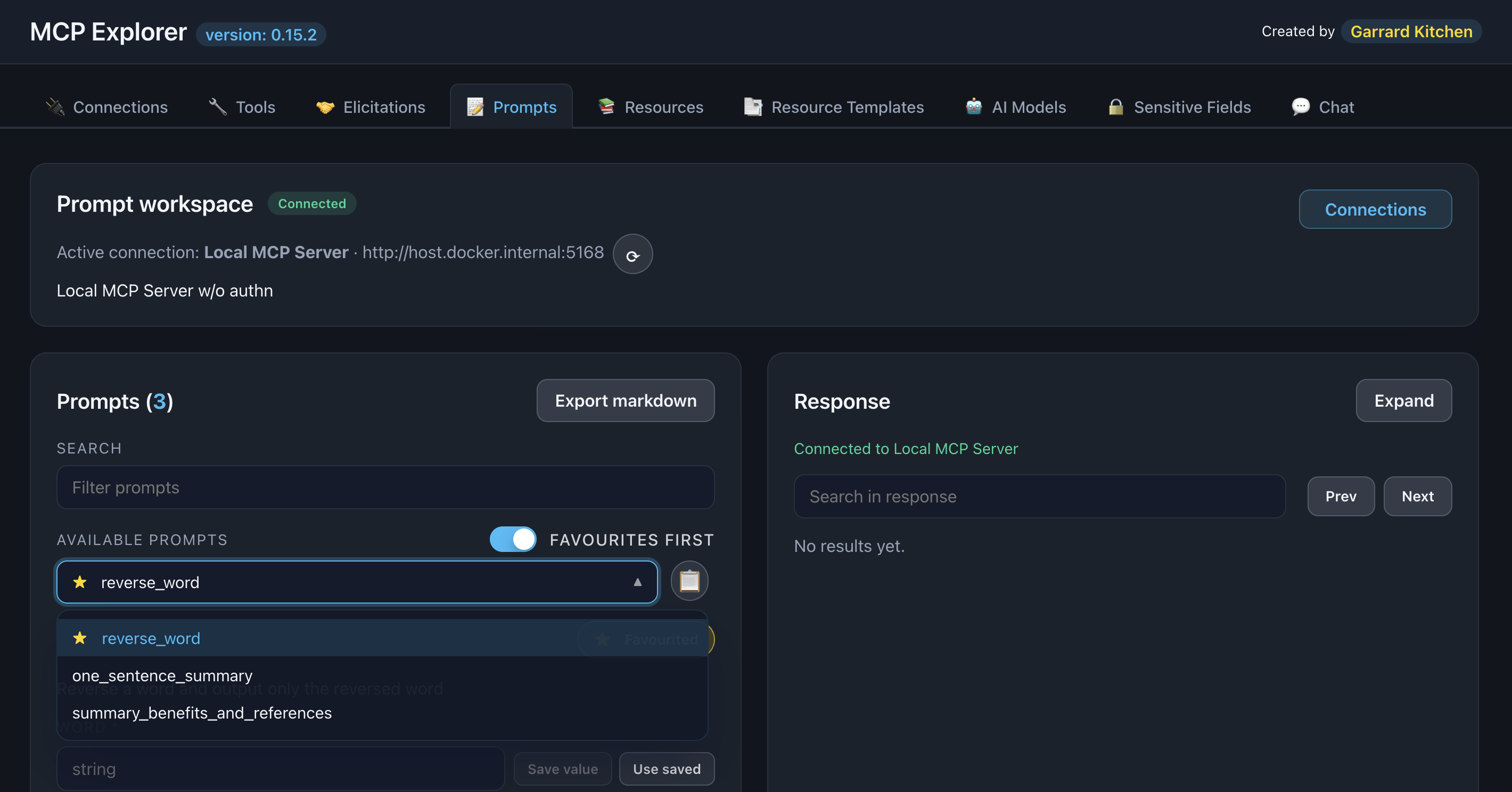
Description: Show the Prompts tab with multiple prompts listed in the sidebar
Step 2: Select a Prompt
Click a prompt to view its details:
- Name and Description
- Required arguments (marked with *)
- Optional arguments
- Argument types and descriptions
📸 Screenshot:
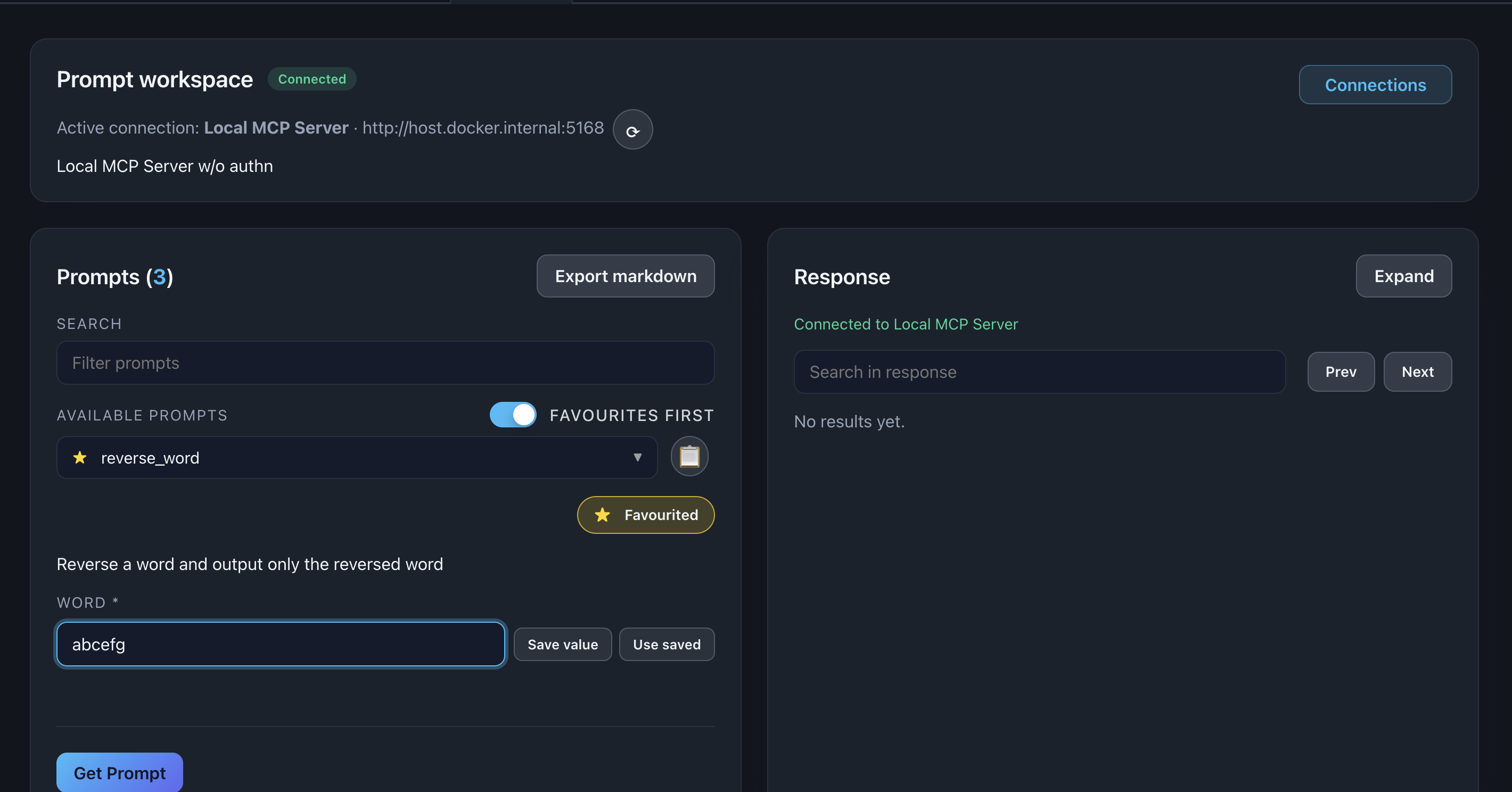
Description: Show a selected prompt with its arguments form visible
Step 3: Fill in Arguments
- Enter values for required arguments
- Optionally fill optional arguments
- Values are automatically saved for next time
Step 4: Get Prompt
Click Get Prompt to resolve the template with your arguments.
The resolved prompt text appears in the response viewer.
📸 Screenshot:
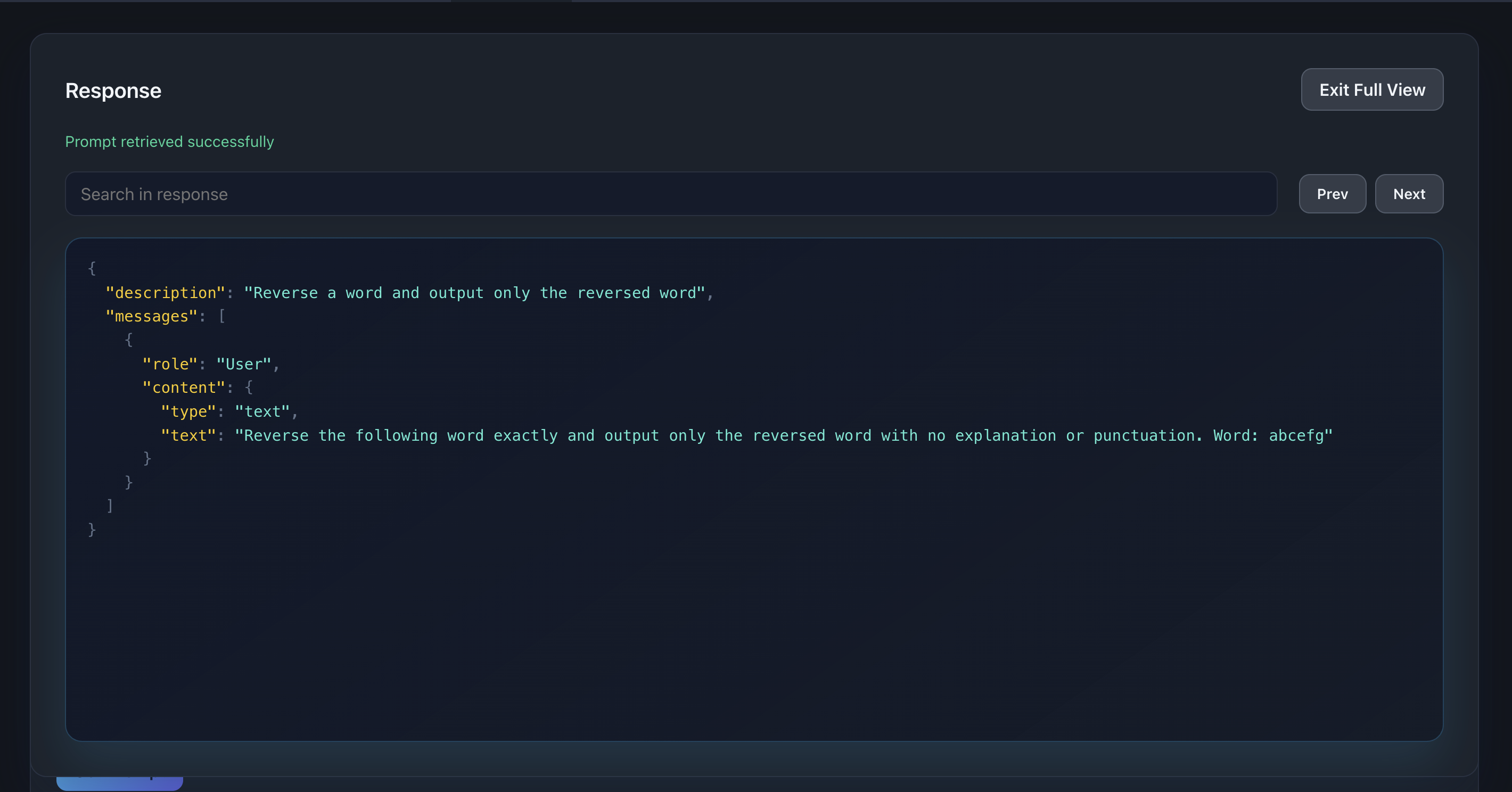
Description: Show the prompt response with resolved text displayed (clicked on expanded response for full screen view)
LLM Integration
Execute with LLM
Send prompt responses directly to AI models for instant execution.
How to use:
- Get the prompt (as above)
- Select an LLM model from the dropdown
- Click Execute with LLM
- View AI-generated response
Response tabs:
- Markdown: Raw markdown text
- Preview: Beautifully rendered HTML
📸 Screenshot:
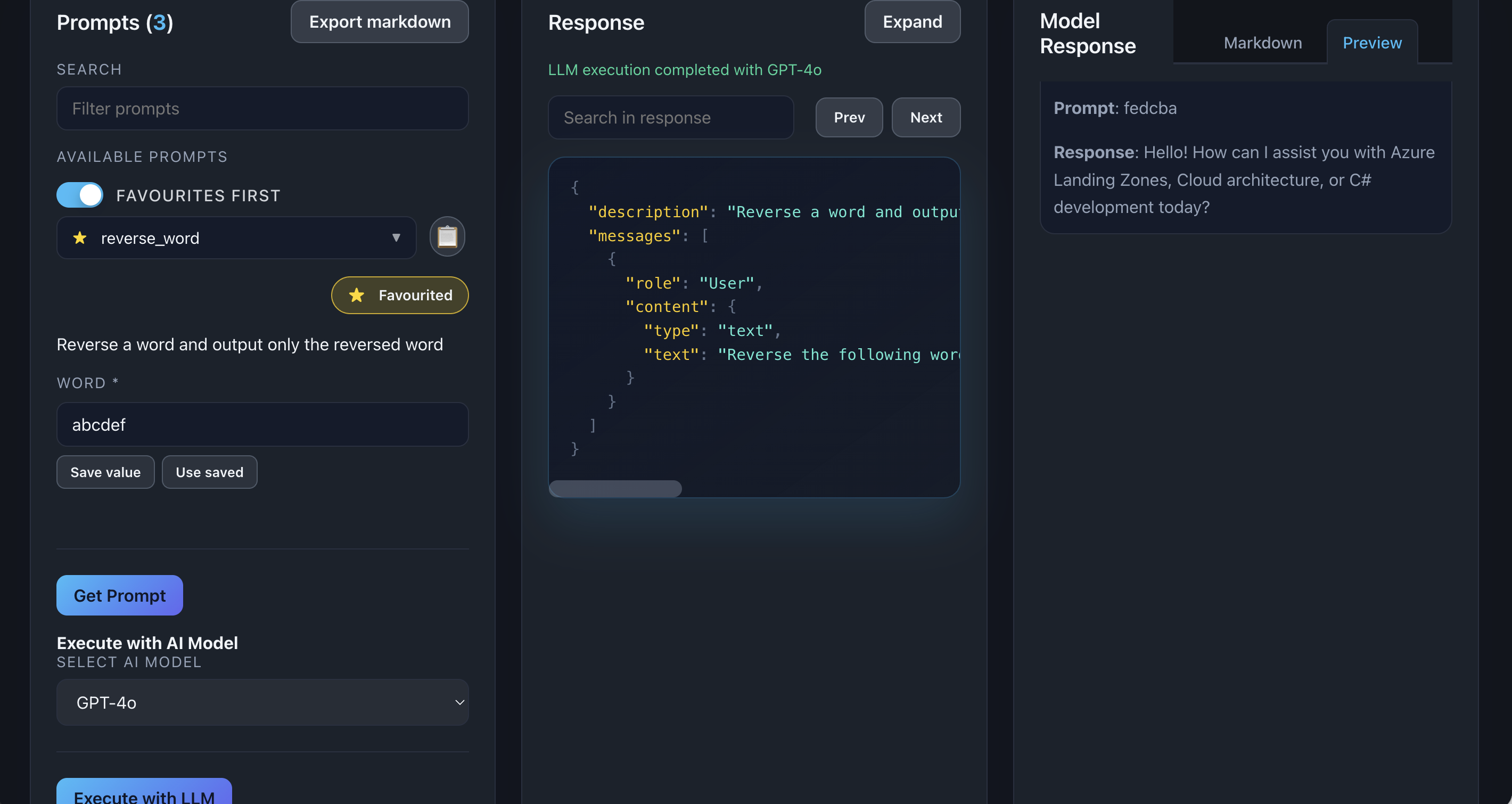
Description: Show the LLM response with both Markdown and Preview tabs visible
info: Prerequisite: Configure at least one LLM model in the AI Models page before using this feature.
Features
Search & Filter
Find prompts quickly by typing in the search box. Matches name and description fields.
Favorites
Click the star icon (☆) to mark frequently-used prompts. Starred prompts are easily accessible.
Argument Persistence
Previous argument values are saved automatically and restored when you return to the same prompt.
Copy Prompt Names
Click the copy icon to copy the prompt name to clipboard for reference elsewhere.
Common Workflows
Quick Prompt Execution
- Select prompt → Fill args → Get Prompt → Read result
AI-Powered Responses
- Select prompt → Fill args → Get Prompt → Select LLM → Execute → Review AI answer
Using in Chat
Use the /prompt slash command in Chat to access prompts conversationally.