Connection Management
Overview
Connections are how you reach MCP servers. MCP Explorer supports multiple transport types, authentication methods, and provides encrypted storage for all secrets.
Key Capabilities
🔌 Multiple Transports
stdio, HTTP, and SSE (Server-Sent Events)
🔐 Encrypted Secrets
AES-256 encryption for API keys, client secrets, and tokens
🎫 Multiple Auth Methods
Custom headers (Bearer, Basic, API keys) and Azure client credentials
🔍 Real-time Search
Find connections by name, description, or auth type
📌 Persistent State
Automatic saving of connection configurations
🏷️ Auth Badges
Visual indicators showing authentication type at a glance
🔄 Auto-Reconnection
Automatic retry on disconnections during operations
⚡ Lazy Connections (Chat)
Connections open only when needed on Chat tab
Creating Connections
Connection Form
Required fields:
- Name: Friendly identifier
- Endpoint: Server connection string
Optional fields:
- Note: Description or helper text
- Authentication: Custom headers or Azure credentials
Endpoint format by transport:
stdio:
stdio:///path/to/executableStreamable HTTP:
http://localhost:3000orhttps://api.example.comSSE:
http://localhost:3000/sseℹ️ SSE or Server-Sent Events has ben deprecated for Streamable HTTP transport
Endpoint of a MCP Server running locally when running MCP Explorer from a docker container:
- Streamable HTTP:
http://host.docker.internal:5156
📸 Screenshot:
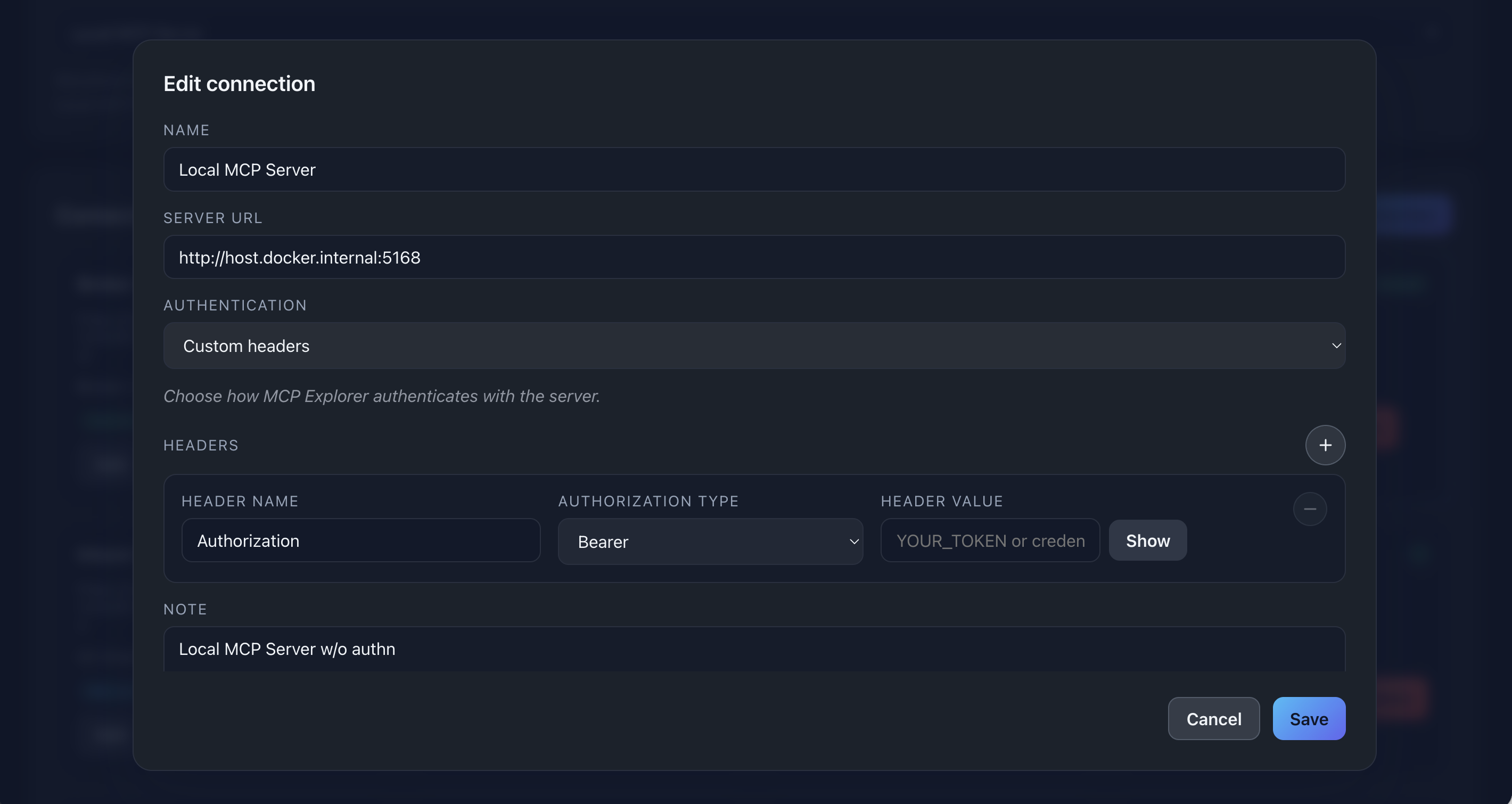
Description: Show the complete connection form with all fields filled, demonstrating a typical configuration
Authentication Methods
Custom Headers
Use this for any header-based authentication.
Common patterns:
Bearer Token:
  Header Name: Authorization
Header Value: your-token-here
Authorization Type: Bearer
Sent as: Authorization: Bearer your-token-here
API Key:
  Header Name: X-API-Key
Header Value: abc123xyz
Authorization Type: (none)
Sent as: X-API-Key: abc123xyz
Basic Auth:
  Header Name: Authorization
Header Value: username:password (base64)
Authorization Type: Basic
Sent as: Authorization: Basic <base64-encoded>
Multiple Headers: You can add as many headers as needed:
- Click ➕ Add Header for each additional header
- Mix Authorization headers with other custom headers
- All values are encrypted at rest
📸 Screenshot:
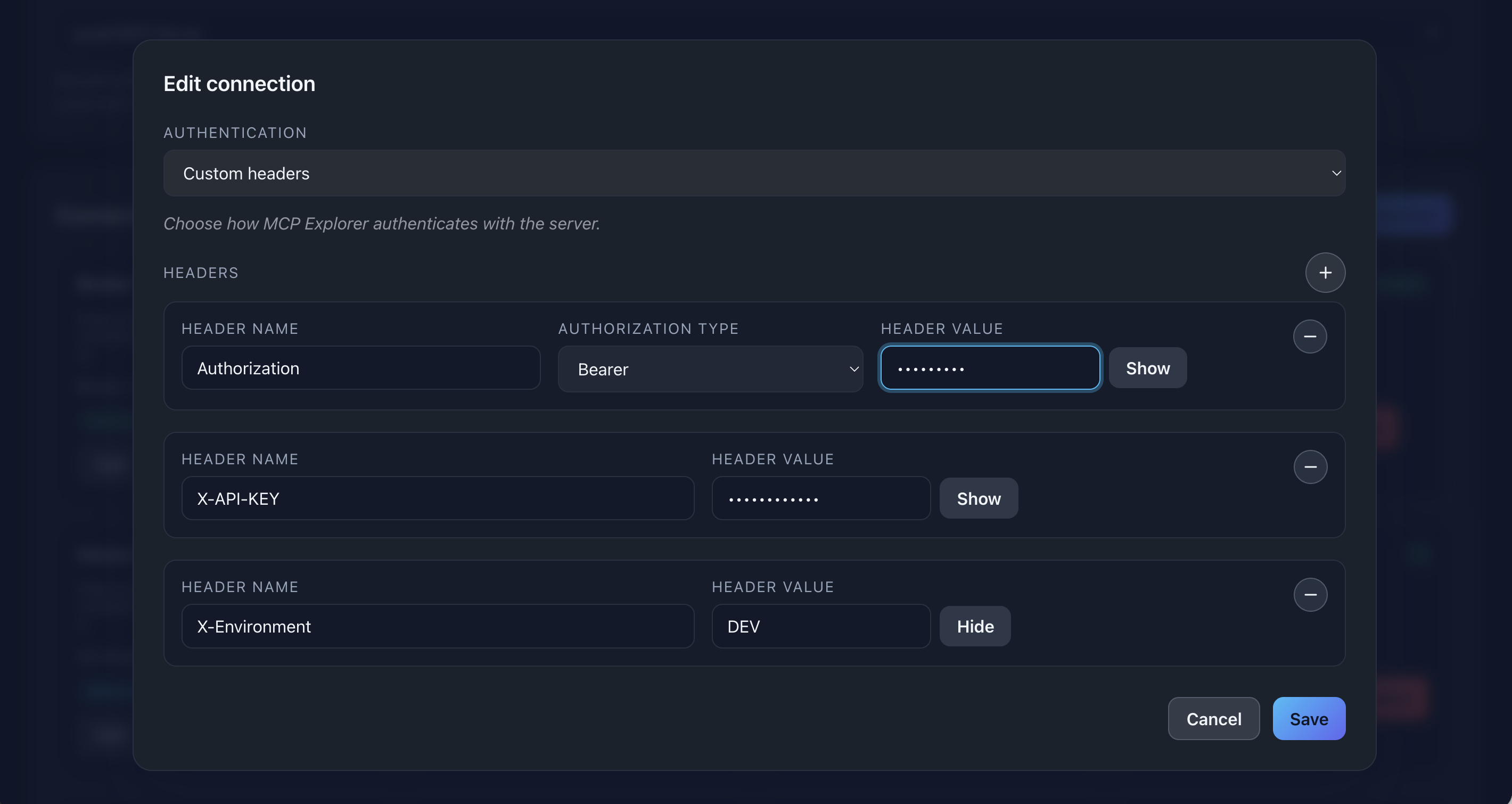
Description: Show the custom headers section with 2-3 different headers configured (e.g., Authorization Bearer + X-API-Key)
info: Authorization Type Dropdown: Only appears for headers named “Authorization”. For other headers, enter values directly.
Azure Client Credentials
Automate OAuth 2.0 authentication for Azure Entra ID (formerly Azure AD).
Required fields:
- Tenant ID: Your Azure tenant GUID
- Client ID: Application (client) ID from App Registration
- Client Secret: Secret value from Certificates & secrets
Optional fields:
- Scope: API scope (default:
api://your-api/.default) - Authority: Custom authority host (default:
https://login.microsoftonline.com)
What happens automatically:
- MCP Explorer requests an access token using your credentials
- Token is injected into
Authorization: Bearer <token>header - Token is automatically refreshed before expiration
- You never manually manage the token
📸 Screenshot:
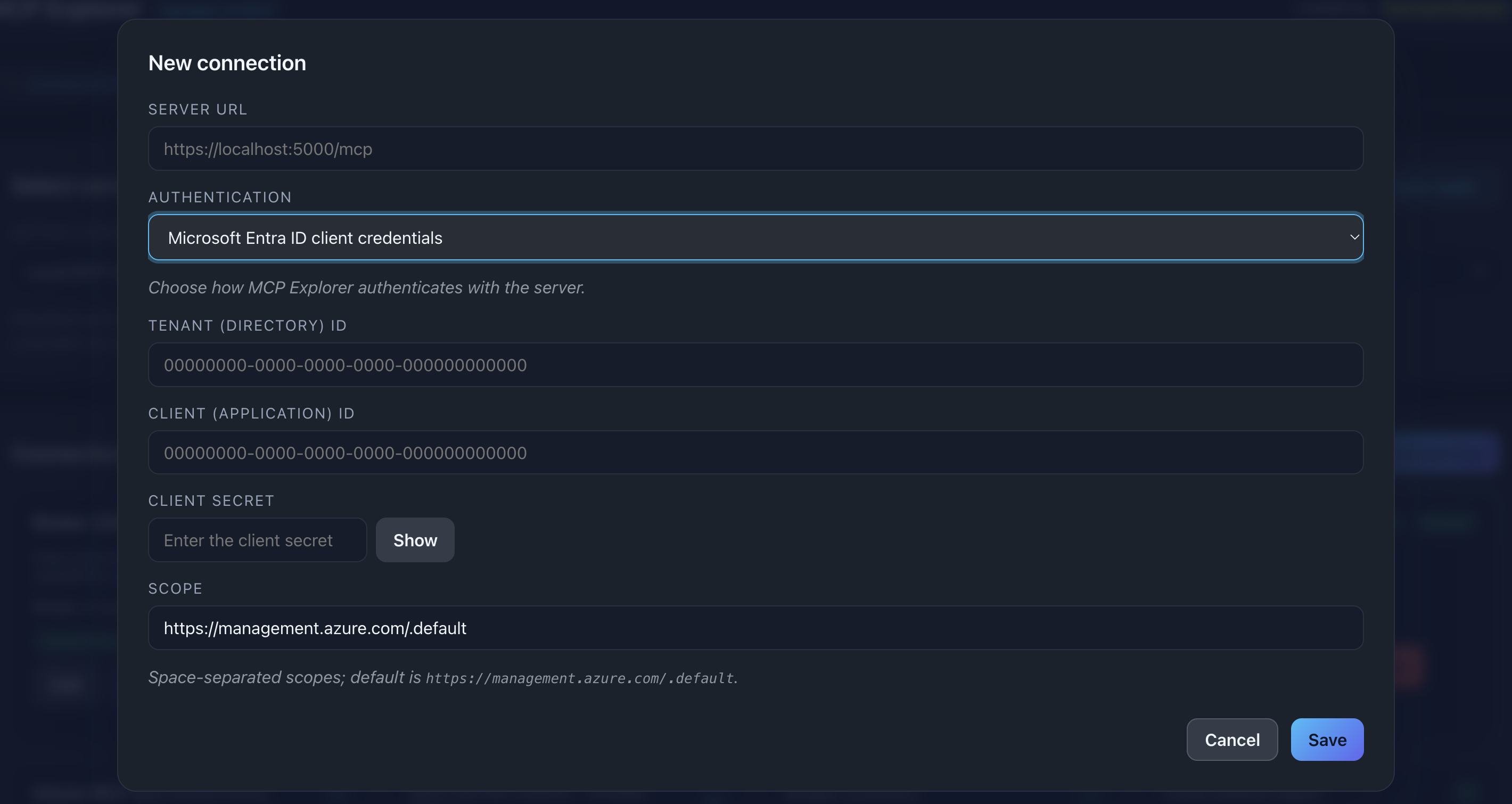
Description: Show the Azure client credentials form with all fields filled (use placeholder values like “00000000-0000-0000-0000-000000000000” for GUIDs)
Use cases:
- Azure-hosted MCP servers
- APIs protected by Entra ID
- Enterprise services requiring app roles
- Multi-tenant applications
Security Features
Encrypted Storage
All secrets are encrypted before being saved to disk:
- API keys
- Bearer tokens
- Client secrets
- Custom header values
Encryption method:
- Algorithm: AES-256
- Platform: Windows DPAPI (Data Protection API)
- Scope: Current user
- Storage:
%APPDATA%\McpExplorer\settings.json
warning: Important: Encrypted secrets are tied to your Windows user account. They cannot be decrypted by other users or on different machines.
Auth Badges
Connections display visual badges indicating their authentication type.
Badge types:
- Custom headers: Shows “Custom Header” badge
- Azure credentials: Shows “Entra” or “Client Credentials” badge
- No auth: No badge displayed
Benefits:
- Quickly identify which connections use which auth method
- Spot misconfigured connections at a glance
- Organize connections by security requirements
📸 Screenshot:
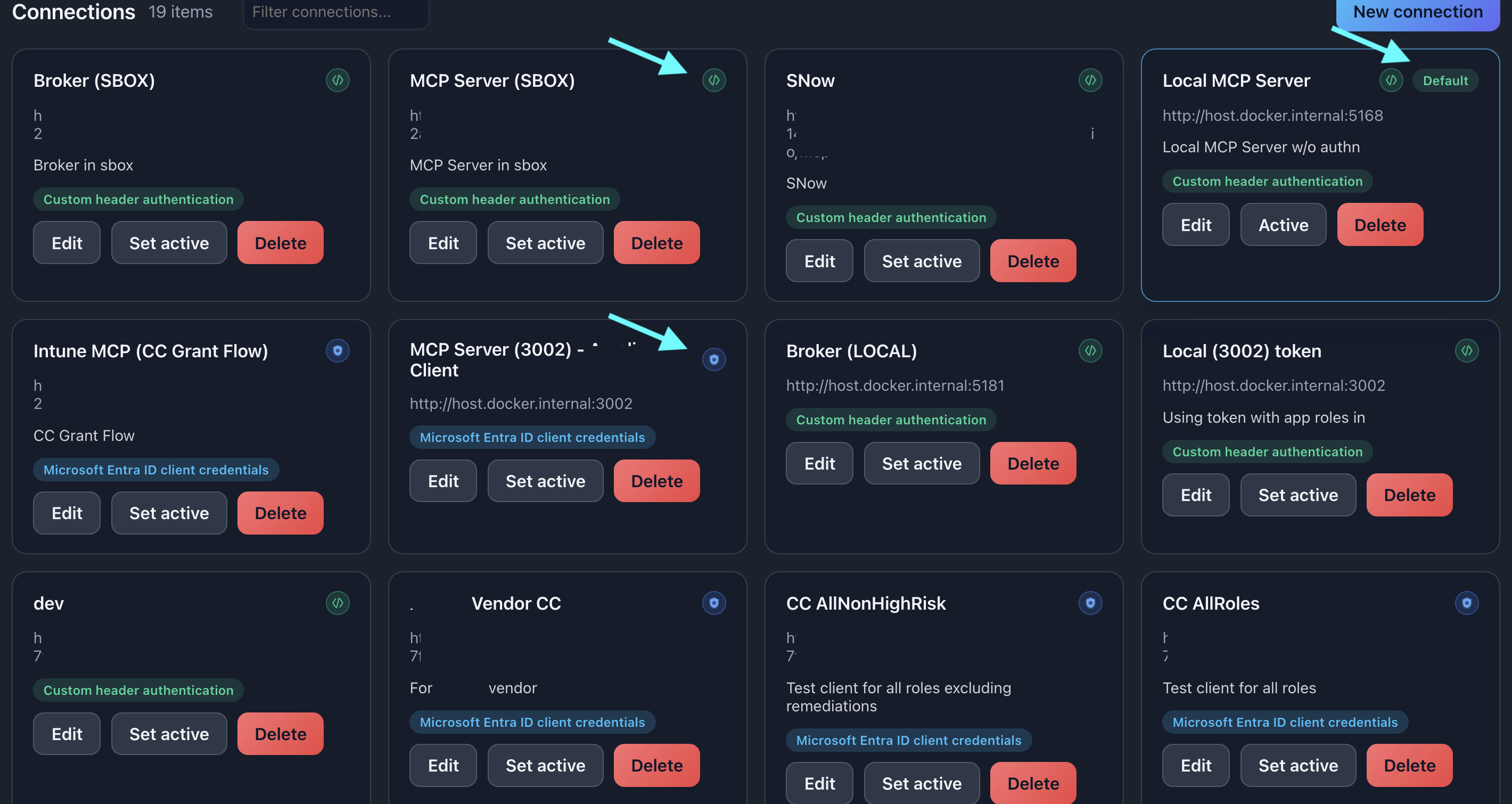
Description: Show the connections list with multiple connections displaying different auth badges (and the default connection)
Search & Filter
Real-time Search
The search box filters connections instantly as you type.
Searchable fields:
- Connection name
- Connection description (note field)
- Authentication type (“custom header”, “entra”, “client credentials”)
Features:
- 300ms debounce for smooth typing
- Case-insensitive matching
- Highlight matches with yellow background
- Keyboard shortcuts: Escape to clear, auto-focus on tab open
📸 Screenshot:
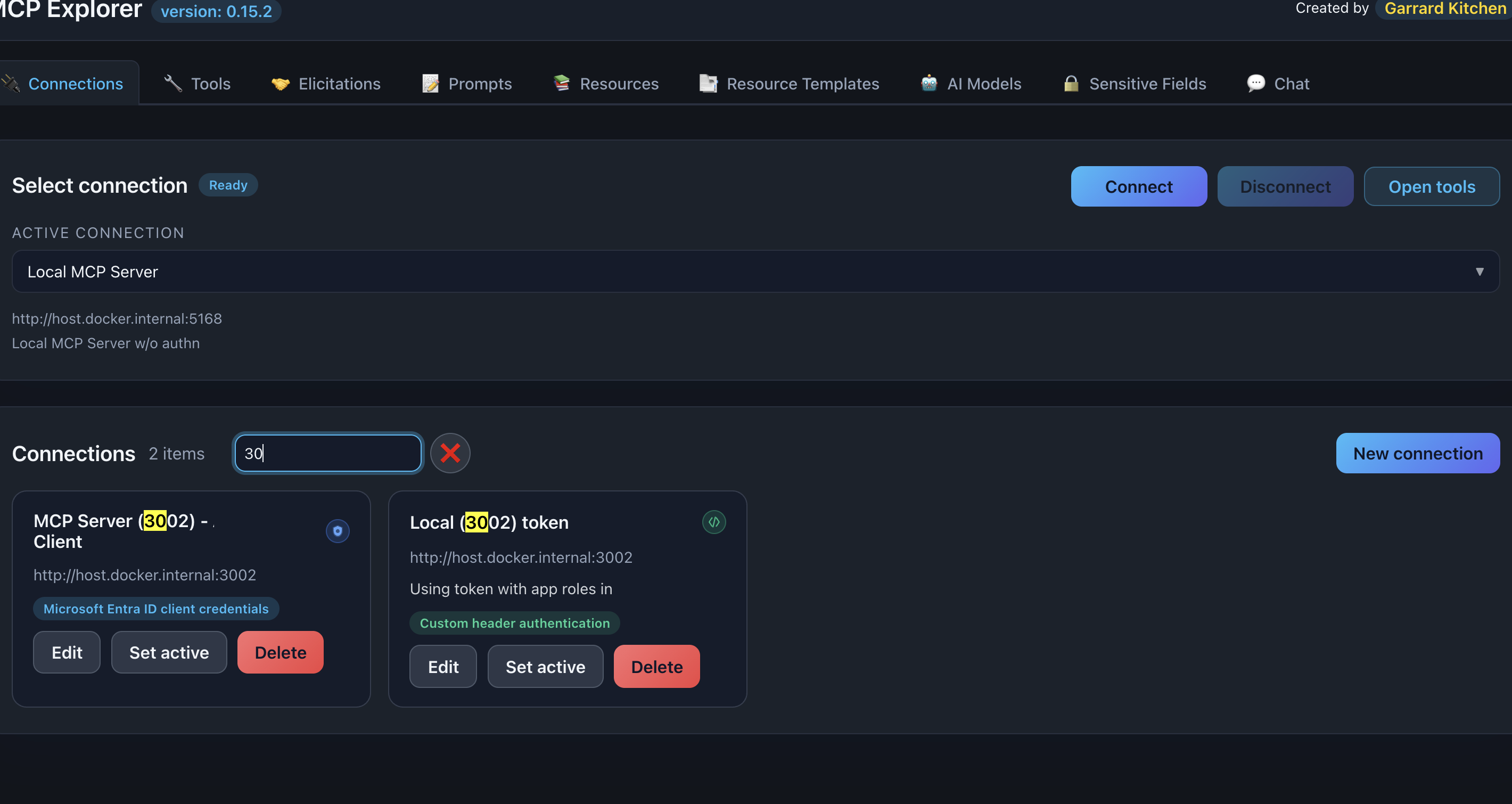
Description: Show the search box with a term entered and matching text highlighted in the connections list
Search Examples
Find by name:
  Search: "weather"
Results: "Weather API", "Weather Dev Server"
Find by auth type:
  Search: "entra"
Results: All connections using Azure client credentials
Find by description:
  Search: "production"
Results: Connections with "production" in the Note field
Connection States
Status Indicators
Connections show their current state:
States:
- Disconnected (default): Gray or red indicator, no active connection
- Connecting…: Orange/yellow indicator, connection in progress
- Connected: Green indicator, active and ready
State transitions:
  Disconnected → [Click Connect] → Connecting... → Connected
Connected → [Server closes] → Disconnected (auto-reconnection may retry)
Connected → [Click Disconnect] → Disconnected
📸 Screenshot:
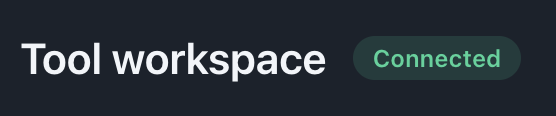



Description: Show three connections in different states (connected, retrying, disconnected) with their respective indicators
Auto-Reconnection
If a connection drops during an operation, MCP Explorer automatically retries.
Behavior:
- Trigger: Connection lost during tool/prompt/resource call
- Action: Automatic reconnection attempts (with exponential backoff)
- User feedback: Visual indicators show retry attempts
- Success: Operation continues seamlessly
- Failure: Error message displayed after max retries
Use cases:
- Network hiccups
- Server restarts
- Temporary unavailability
Lazy Connections (Chat)
On the Chat tab, connections work differently:
Behavior:
- Connections are not opened automatically
- You check a checkbox to enable a connection
- Connection opens only when checkbox is checked
- Unchecking disconnects immediately
Benefits:
- Conserve resources (don’t connect to unused servers)
- Faster initial load
- Control which tools are available to AI
- Reduces unnecessary network traffic
📸 Screenshots:
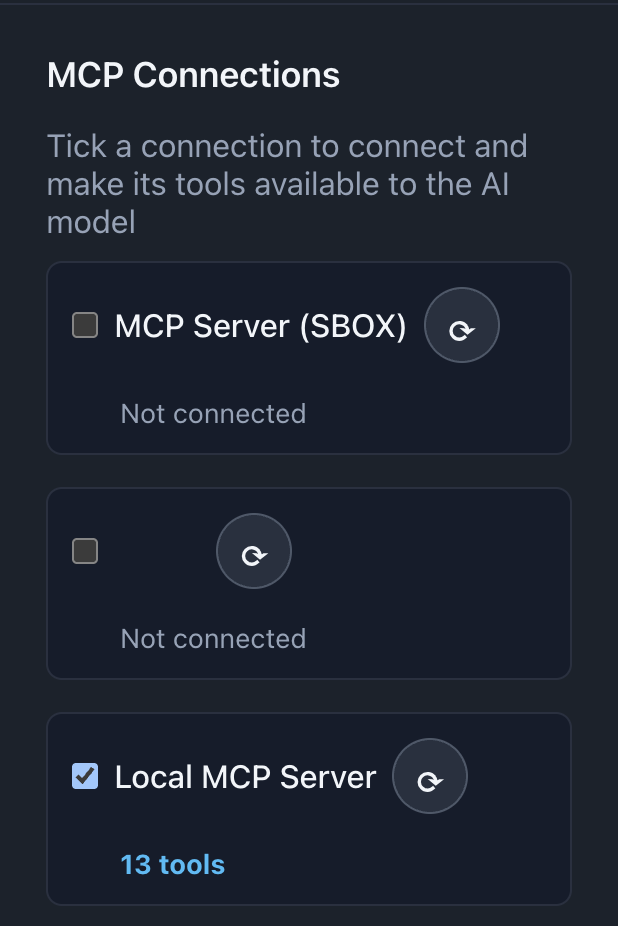
Description: Show the Chat page connections section with checkboxes (some checked, some unchecked) and connection status indicators
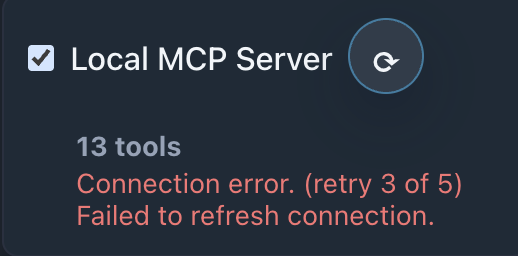
Description: Show the Chat page connections section with connection retrying status indicators
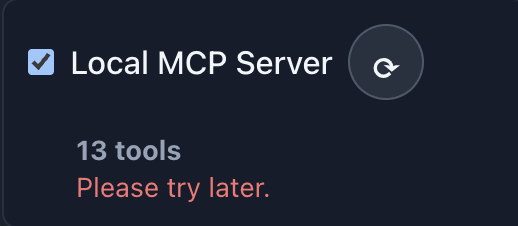
Description: Show the Chat page connections section with connection lost status indicators
Managing Connections
Edit a Connection
- Find the connection in the list
- Click the Edit button (✏️ pencil icon)
- Modify any fields (name, endpoint, auth, note)
- Click Save
What’s preserved:
- Connection ID (internal)
- Parameter history for tools
- Favorite tools/prompts/resources
Delete a Connection
- Click the Delete button (🗑️ trash icon)
- Confirm the deletion
warning: Warning: Deleting a connection removes:
- The connection configuration
- Parameter value history
- Favorites associated with this connection
This action cannot be undone.
Duplicate a Connection
Use the built-in Copy Connection feature to duplicate any connection in one step:
- Click the Copy button (⧉ icon) on the connection row.
- Enter a unique name for the copy.
- Click Copy.
All settings (endpoint, auth, notes, group) are inherited by the copy. See Connection Groups, Copy & Starred for full details.
Common Connection Patterns
Local Development (stdio)
Use case: Testing local MCP server executables
  Name: Local Dev Server
Endpoint: stdio:///usr/local/bin/my-mcp-server
Auth: Custom headers (no headers added, or minimal headers)
Note: Development environment
HTTP API with API Key
Use case: Cloud-hosted MCP server with API key auth
  Name: Production Weather API
Endpoint: https://weather-api.example.com
Auth: Custom headers
  Header: X-API-Key = abc123xyz456
Note: Production instance (do not delete)
HTTP API with Bearer Token
Use case: API using JWT or OAuth bearer tokens
  Name: Auth Service
Endpoint: https://api.auth.example.com
Auth: Custom headers
  Header: Authorization = my-jwt-token (Bearer)
Note: Requires token refresh every 24h
Azure-Protected API
Use case: Enterprise API protected by Azure Entra ID
  Name: Azure MCP Service
Endpoint: https://my-api.azurewebsites.net
Auth: Azure client credentials
  Tenant ID: 00000000-0000-0000-0000-000000000000
  Client ID: 11111111-1111-1111-1111-111111111111
  Client Secret: ********
  Scope: api://my-api/.default
Note: App roles: mcptools.read, mcptools.execute
SSE Streaming Server
Use case: Real-time MCP server using Server-Sent Events
  Name: Real-time Monitor
Endpoint: http://localhost:8080/sse
Auth: Custom headers (or none)
Note: Streams live data updates
Troubleshooting
Connection Fails with 401/403
Problem: Authorization errors
Solutions:
- Verify API key/token is correct and not expired
- Check Authorization Type (Bearer vs Basic)
- For Azure: Ensure app registration has proper roles assigned
- Test credentials outside MCP Explorer (curl, Postman)
- Review server logs for detailed auth errors
stdio Executable Not Found
Problem: “command not found” or similar error
Solutions:
- Use the full absolute path to the executable
- Ensure the file has execute permissions (
chmod +x) - Test the command in a terminal first
- Check for typos in the path
- Verify the executable is compatible with your OS
Connection Hangs on “Connecting…”
Problem: Status stuck at “Connecting…”
Solutions:
- Verify the server is actually running
- Check endpoint URL/path is correct
- Test connectivity (ping, curl, browser)
- Review firewall/network restrictions
- Check server logs for startup errors
- Try disconnecting and reconnecting
Secrets Not Persisting
Problem: API keys/tokens don’t save between sessions
Solutions:
- Ensure application has write permissions to settings file
- Check
%APPDATA%\McpExplorerfolder exists - Verify no file permission errors in console
- Try running as administrator (Windows)
- Check antivirus isn’t blocking file writes
Tips & Best Practices
🏷️ Descriptive Names
Use clear, descriptive names that indicate purpose (“Dev Weather”, “Prod Auth API”)
📝 Use the Note Field
Add context, requirements, or warnings in the Note field for future reference
🔐 Rotate Secrets Regularly
Periodically update API keys and tokens for security
🧪 Test in Isolation
Create separate connections for dev/staging/prod to avoid accidental production changes
📋 Document Dependencies
Note required app roles, scopes, or permissions in the Note field
🔍 Use Search
With many connections, search becomes invaluable—use descriptive names and notes
🎯 Organize by Environment
Prefix connection names with environment (e.g., “DEV - Weather”, “PROD - Weather”)
🗂️ Use Connection Groups
Assign connections to named, colour-coded Groups for visual organisation and quick switching — see Connection Groups, Copy & Starred.
⭐ Star Your Daily Drivers
Star frequently-used connections to pin them at the top of the list. Use “Show starred only” to focus quickly.