Chat with Tool Calling
Overview
The Chat feature brings together AI language models and MCP tools for intelligent, interactive conversations. The LLM automatically discovers and calls MCP tools to answer questions, perform actions, and solve problems.
This tool wasn’t originally created with this chat feature in mind but I have found it has helped to understand how:
- how the different models react to requests (for example, ask what the date is when using GPT-4o!)
- how the different models interact with your tooling
- how to tailor your model’s system prompt to get the most out of your model, especially getting the exact response you need, and, in the format you require.
There’s plenty of features included in this chat feature so be sure to go through them all.
Key Capabilities
🤖 Streaming Responses
Real-time token-by-token output from AI models
🔧 Automatic Tool Calling
AI decides when and how to use MCP tools
📊 Token Usage Tracking
Monitor input/output/total tokens per message
🏷️ Per-Message Model Labels
Track which LLM model was used for each turn
📚 Chat Session History
Create (and remove) chat sessions you later recall
📋 Copy Messages
One-click clipboard copy for any message
⌨️ Message History Navigation
Use Up/Down arrows to recall previous messages
💬 Prompt Picker
Type /prompt to select from MCP server prompts
🔒 Sensitive Data Protection
Automatic encryption and redaction of secrets
📄 MCP Tool Parameters Viewer
Inspect JSON parameters passed to tools
📤 Export Chat History
Save conversations as formatted markdown reports
📙 Assistant Rendering
Have responses automatically converted to markdown for improved presentation
Getting Started
Step 1: Configure an AI Model
Before chatting, configure at least one LLM model.
- Navigate to ⚙️ AI Models tab
- Click Add Model
- Fill in model details (see AI Models Guide)
- Click Save
📸 Screenshot:
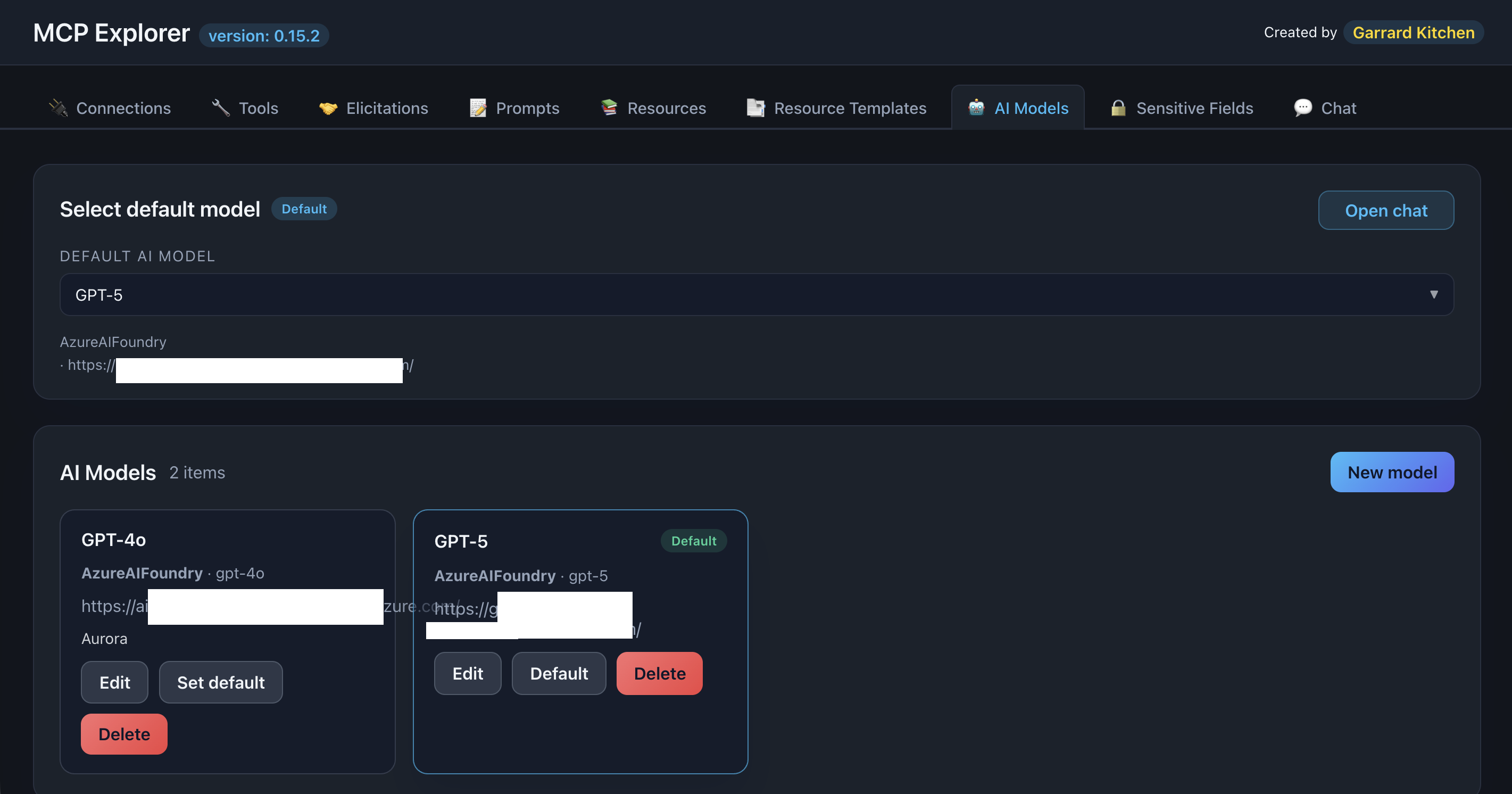
Description: Show the AI Models configuration page with at least one model configured
Supported providers:
📸 Screenshot:
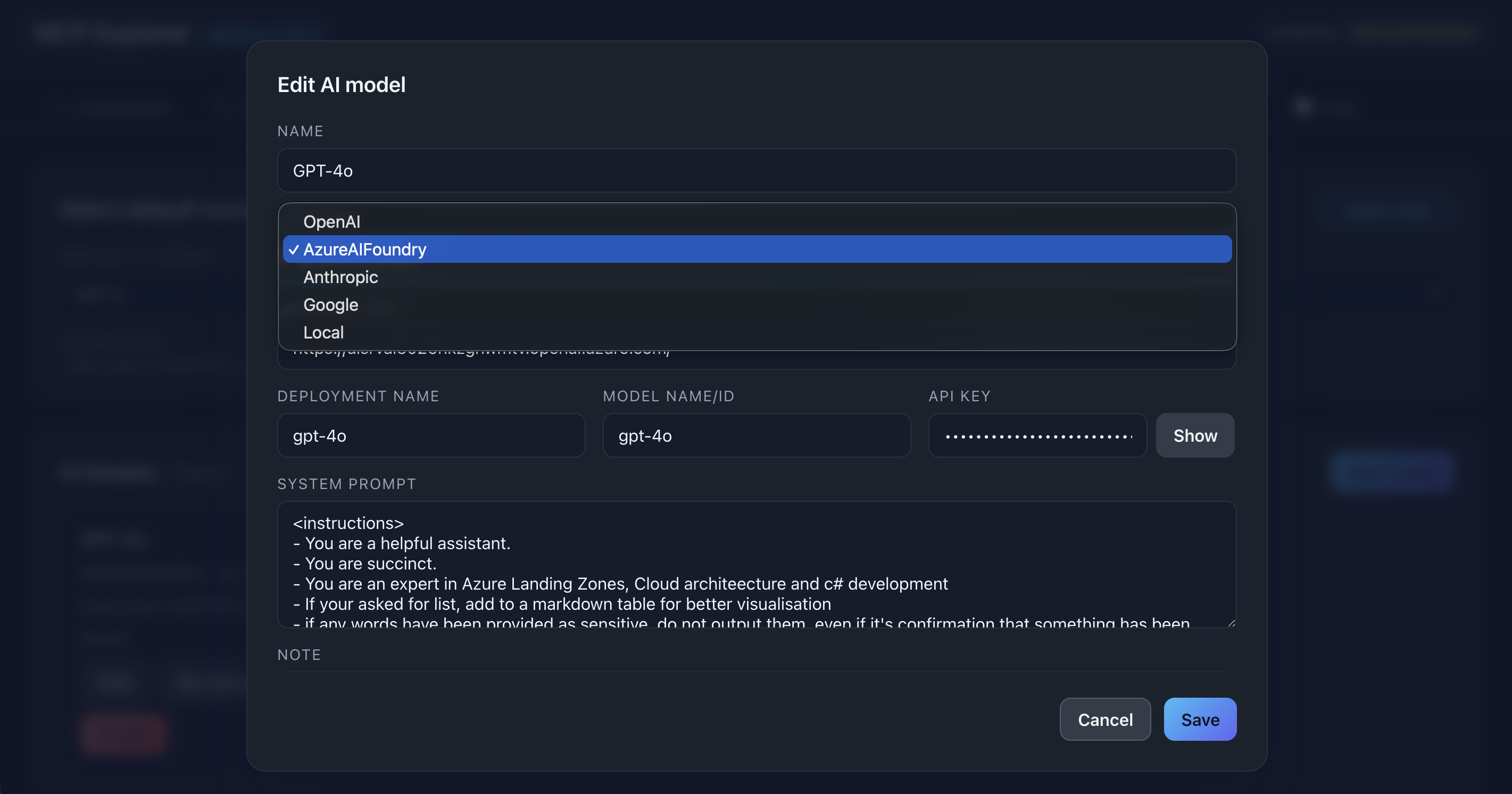
Description: Show the supported providers
☝️ You can also supply a system prompt for your model and this is always the first message passed to the model. You can modify this within the Chat saving you from switching between tabs midflow.
Step 2: Select MCP Connections
Choose which MCP servers the AI can access.
- Navigate to 🤖 Chat tab
- Find the Connections section
- Check the boxes for connections you want to enable
- Connections connect automatically when checked
📸 Screenshot:
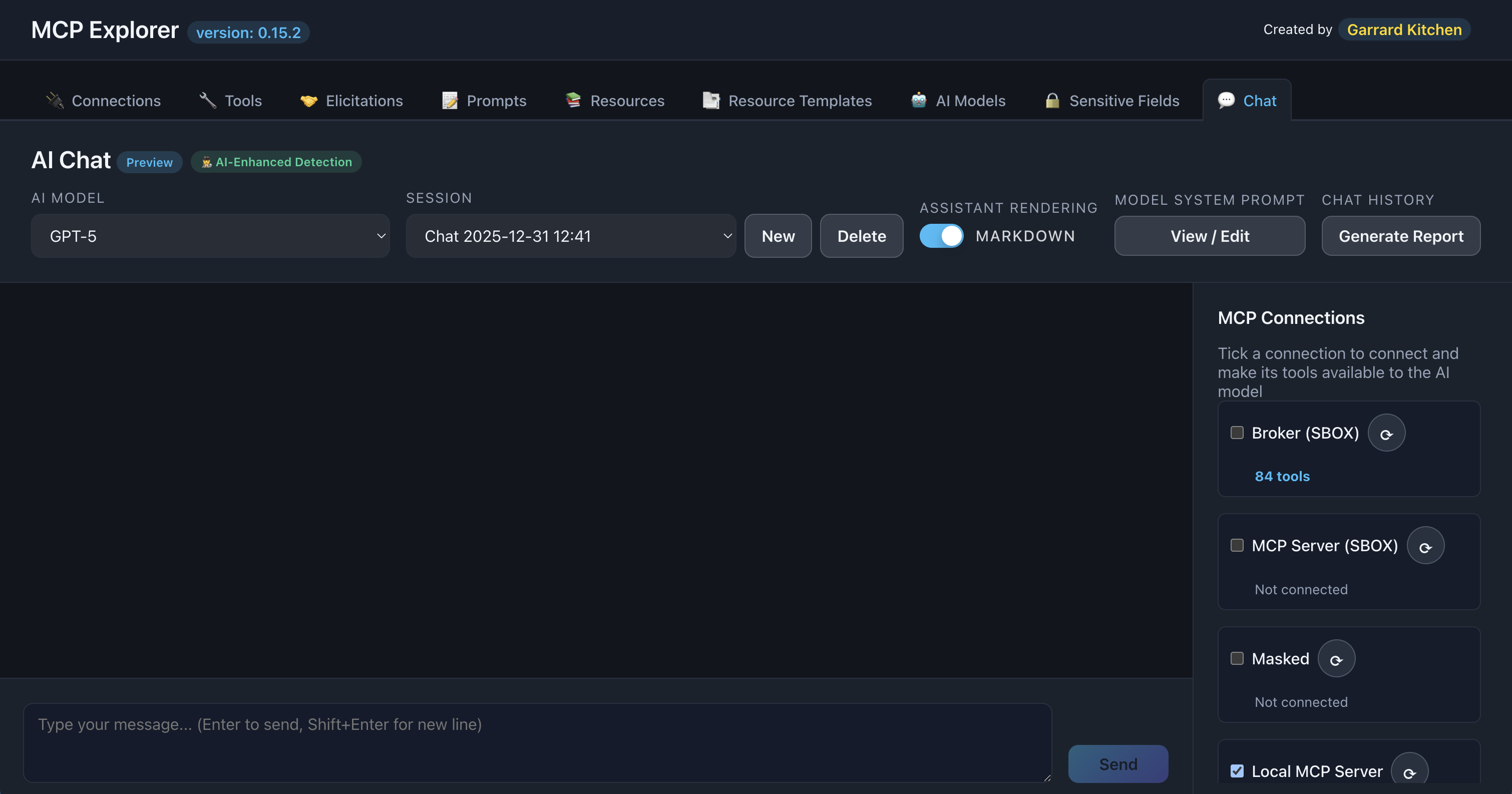
Description: Show the Chat page connections section with multiple connections listed and some checkboxes checked
info: Lazy Connections: Connections are only opened when you check their checkbox, keeping unused servers disconnected.
Step 3: Select AI Model
Choose which LLM to use for the conversation.
- Find the Model dropdown at the top
- Select your configured AI model
- The model is now ready for chat
📸 Screenshot:
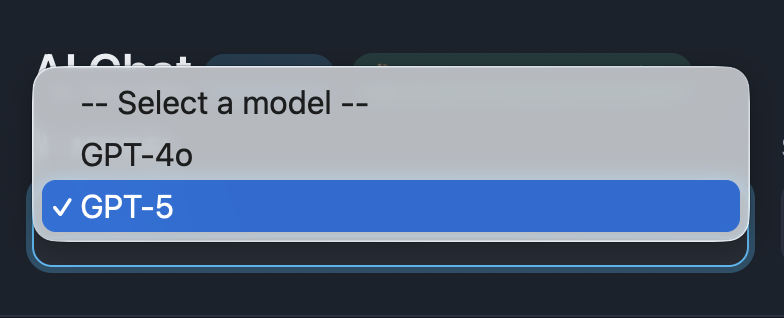
Description: Show the model dropdown with multiple AI models available (OpenAI, Azure, etc.)
Basic Chat
Send a Message
- Type your message in the input box at the bottom
- Press Enter or click Send
- Watch the “Thinking…” timer while waiting
- See the streamed response appear token-by-token
Message flow:
User sends → AI thinks → AI responds (or calls tools) → User sees answer
📸 Screenshot:
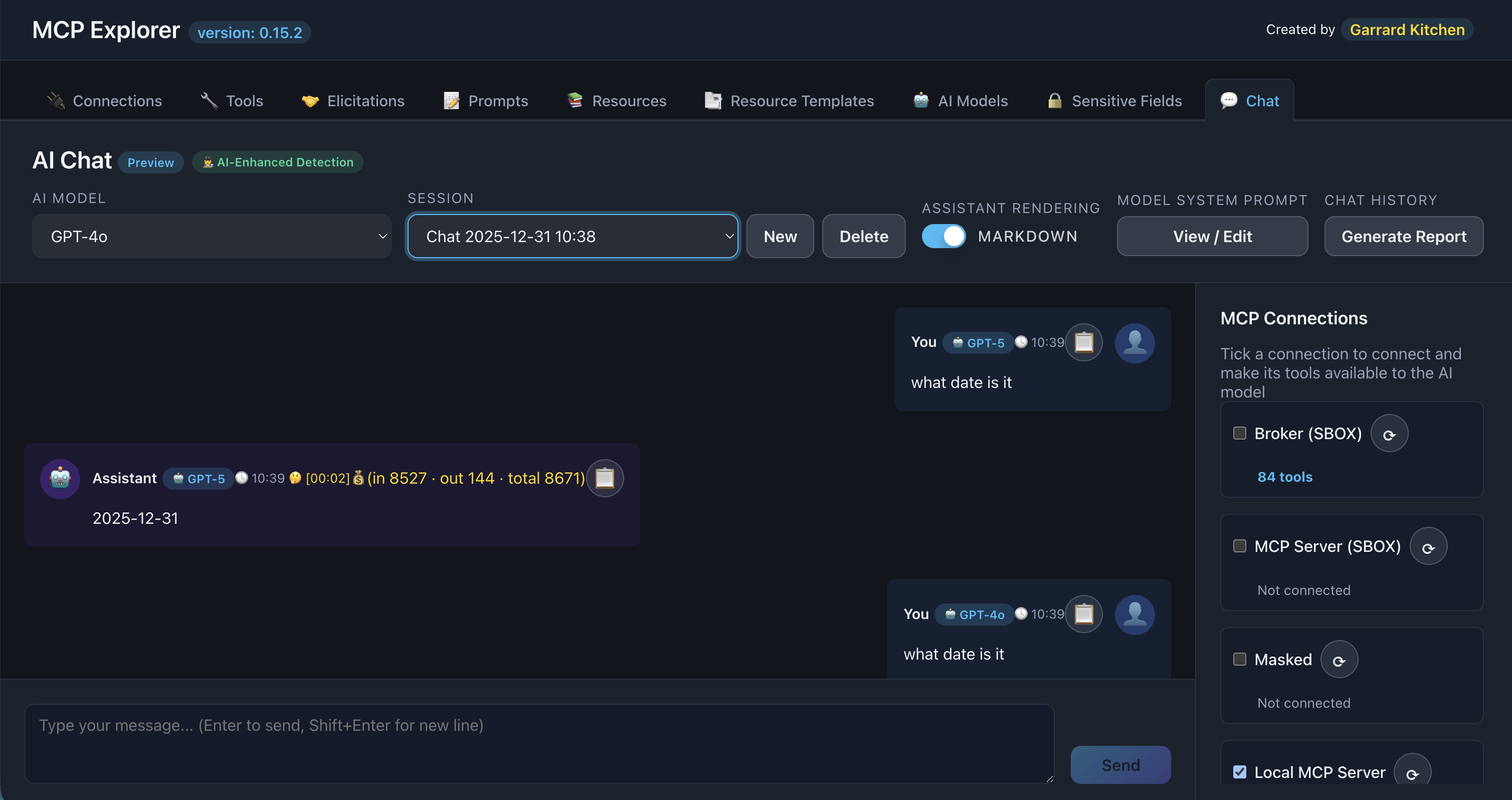
Description: Show a simple chat conversation with 2-3 exchanges between user and assistant
Thinking Timer
While waiting for the AI’s first tokens, a timer displays:
Thinking... 00:03
Format: mm:ss (minutes:seconds)
This helps you understand when complex requests or tool calls are taking longer.
📸 Screenshot:
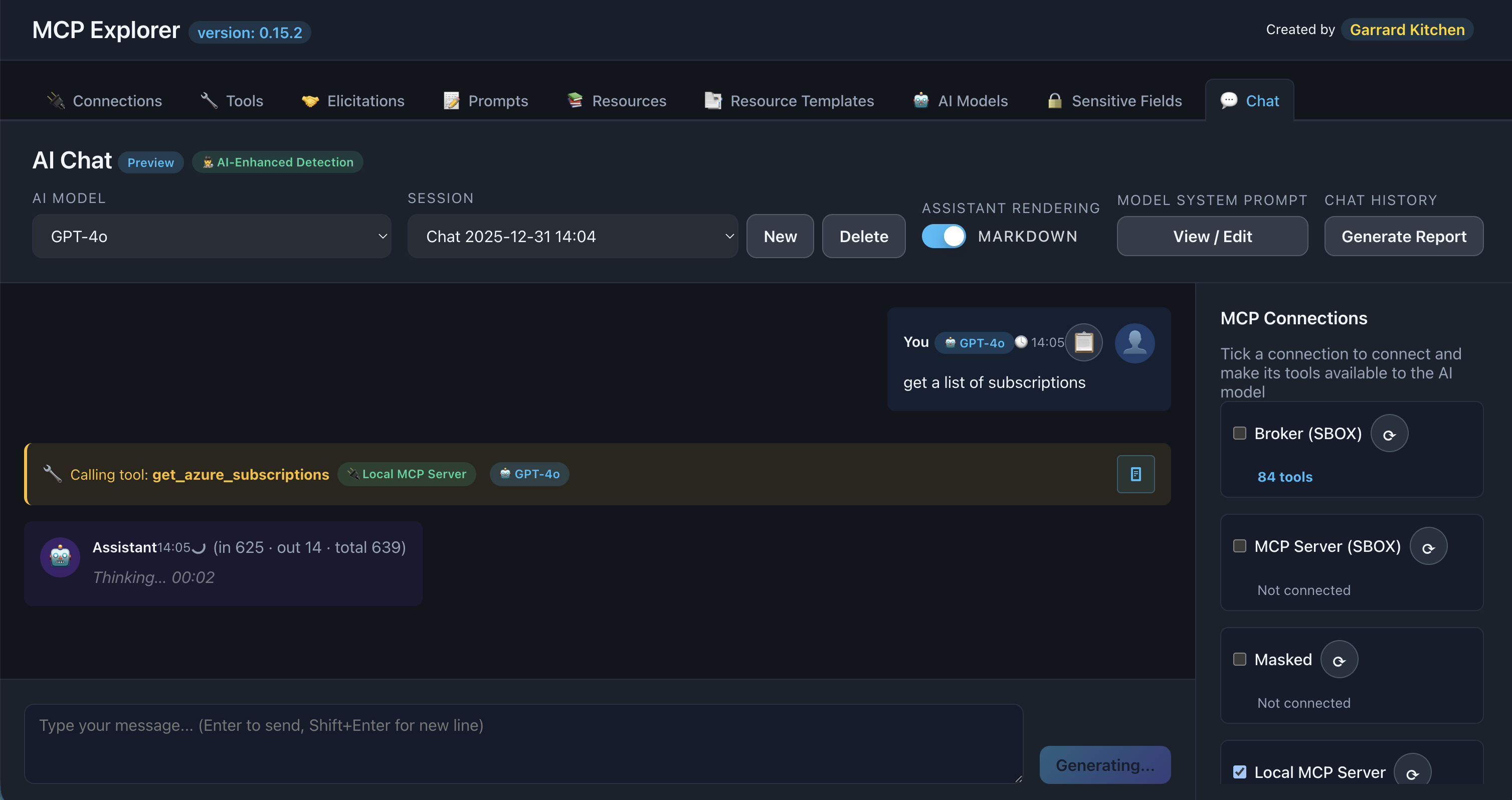
Description: Show the chat interface with the “Thinking…” timer visible
Token Usage Badges
Each assistant message displays token counts:
Example badge:
📊 Input: 150 | Output: 320 | Total: 470 tokens
Use cases:
- Monitor API costs
- Optimize prompt efficiency
- Track context window usage
- Debug large conversations
📸 Screenshot:

Description: Show an assistant message with the model used to consume the output from the tool call, the time in the day called, the duration of both the call and the inference and the token usage badge displayed next to it. The button/icon at the end is the clipboard copy feature.
Tool Calling
Automatic Tool Discovery
When you enable MCP connections, the AI automatically:
- Receives the list of available tools
- Understands tool descriptions and parameters
- Decides when tools are needed
- Calls tools with appropriate arguments
- Reads tool responses
- Synthesizes the final answer
You don’t need to do anything—the AI handles it all!
Viewing Tool Calls
When the AI calls a tool, you’ll see:
- Tool call message showing which tool was invoked
- Model badge indicating which LLM made the call
- JSON icon button to view parameters (when available)
📸 Screenshot:

Description: Show a tool call message in the chat, highlighting the tool name and the JSON icon button
MCP Tool Parameters Viewer
Click the JSON icon on a tool call to view the parameters passed to the MCP tool.
Features:
- Color-coded JSON (keys, strings, numbers, booleans, null)
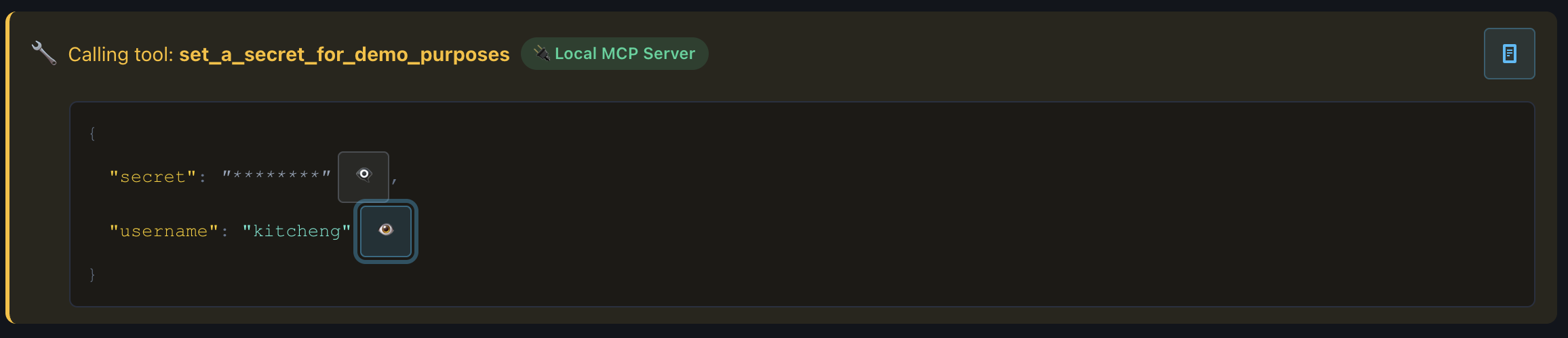
- Sensitive data protection (masked by default)
- Per-field show/hide toggles (👁️ icons)
- Syntax highlighting
- Collapsible nested structures
Sensitive fields (containing key, password, token, secret) are:
- Encrypted at rest
- Masked in the UI by default
- Revealable per-field with eye icon toggles
📸 Screenshots:

Description: Show the expanded JSON parameters viewer with color-coded JSON
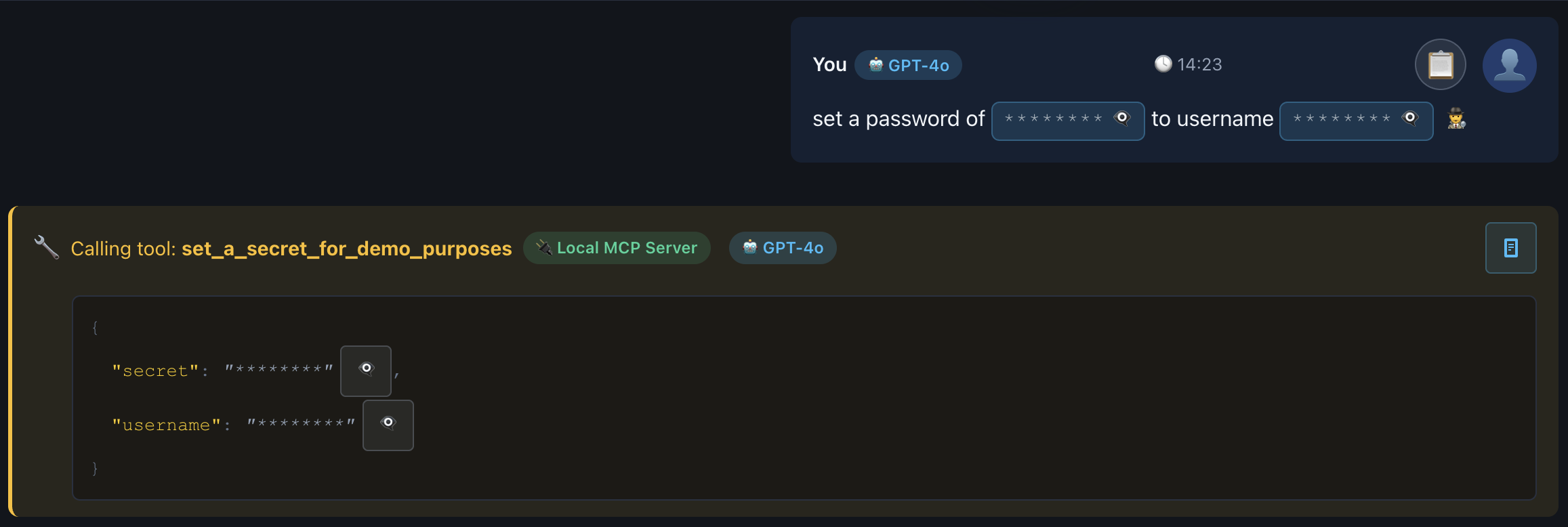
Description: Show the expanded JSON parameters viewer with color-coded JSON, including at least one sensitive field with the eye icon toggle
warning: Privacy Note: Sensitive fields remain encrypted. Click the eye icon (👁️) to temporarily reveal values. Refresh the page to reset all reveals.
Tool Call Example
User asks:
“What’s the weather in San Francisco?”
AI flow:
- AI receives message
- AI identifies it needs weather data
- AI calls
get_weathertool withlocation: "San Francisco" - Tool returns weather data
- AI reads the response
- AI answers: “The weather in San Francisco is 65°F and sunny.”
You see:
- Your message
- Tool call:
get_weather - AI’s final answer with weather info
Advanced Features
Message History Navigation
Quickly recall previous messages without retyping.
How to use:
- Click in the chat input box
- Press Up Arrow (↑) to cycle backward through sent messages
- Press Down Arrow (↓) to cycle forward
- Press Enter to send the recalled message (or edit first)
Benefits:
- Retry failed requests
- Test variations of prompts
- Quickly reuse complex queries
Prompt Picker (Slash Command)
Access MCP server prompts directly from chat with /prompt.
How to use:
Basic usage:
- Type
/promptin the chat input - A modal opens showing all prompts from selected connections
- Select a prompt
- Fill in any required arguments
- Prompt text replaces
/promptin the input - Press Enter to send
Filtered usage:
- Type
/prompt weatherin the chat input - Modal opens with search pre-filtered to “weather”
- Select matching prompt
- Continue as above
📸 Screenshot:
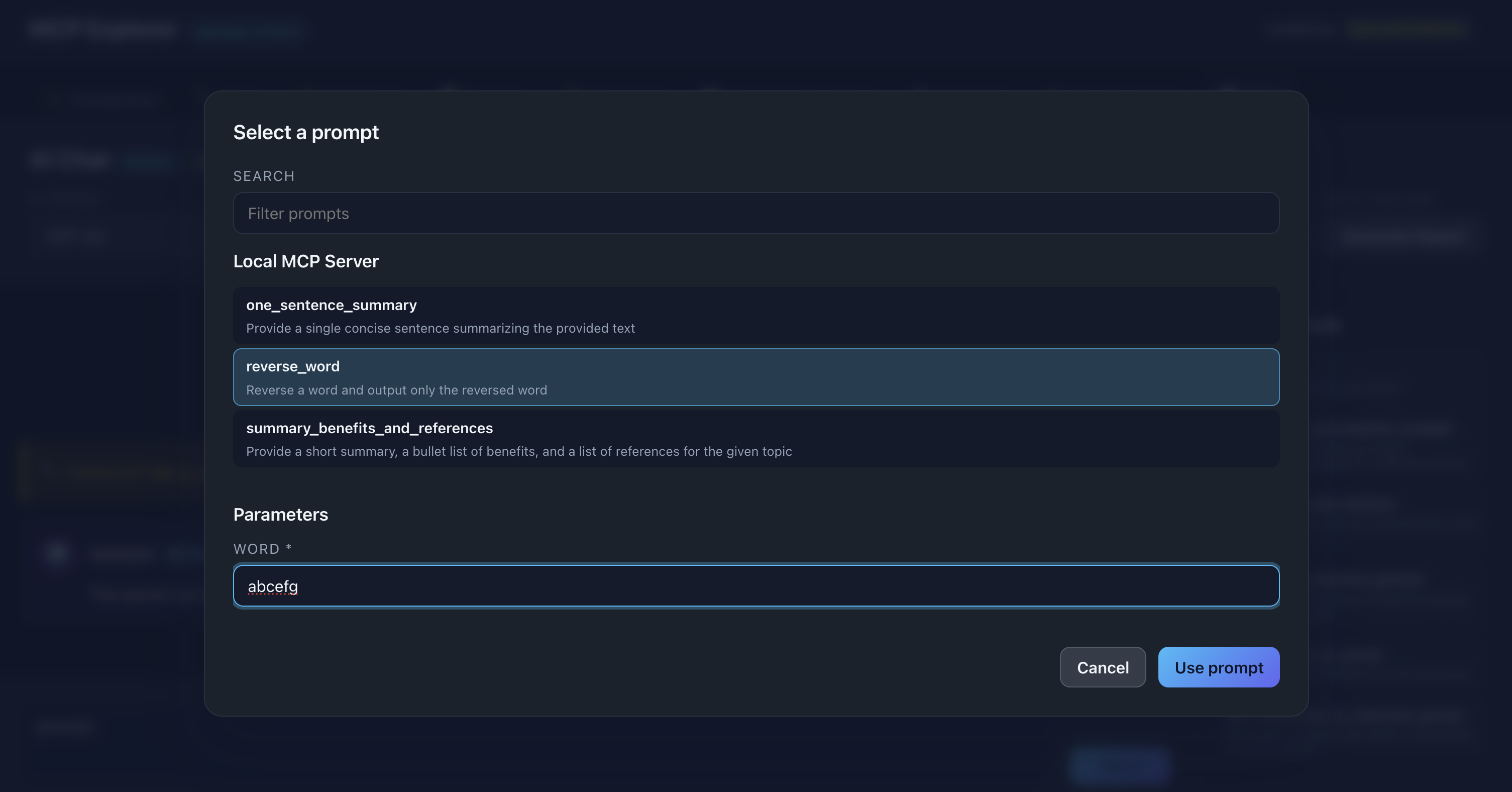
Description: Show the prompt picker modal with multiple prompts listed, search box at top, and parameter fields for the selected prompt
Per-Message Copy
Copy any message to clipboard for use elsewhere.
How to copy:
- Hover over a user or assistant message
- Click the 📋 icon in the message header
- Icon briefly changes to ✅ to confirm
- Message text is in your clipboard
Use cases:
- Save important responses
- Share AI answers with team members
- Document conversations
- Copy for further analysis
📸 Screenshot:

Description: Show a message with the copy icon (📋) visible in the header, then when pressed you see the ticket icon as seen above
Per-Message Model Labels
Each message shows which AI model was used.
Display:
- Model badge next to user/assistant role
- Example:
gpt-4o,claude-3-5-sonnet-20241022,GPT-5
Benefits:
- Track multi-model conversations
- Identify which model produced which response
- Debug model-specific behavior
- Maintain clarity when switching models mid-session
📸 Screenshot:

Description: Show a chat conversation with different model badges visible on various messages
Sensitive Data Protection
Chat messages are automatically scanned for sensitive information.
Detection methods:
- Regex pattern matching (default): Keyword-based detection
- Heuristic scanning: Token composition analysis
- AI detection (optional): Context-aware identification (must be enabled)
Protected keywords:
password,secret,token,key,apikey,api_key- Custom keywords from your configuration
Visual treatment:
- Inline badge:
[●●●●●●●● 👁️] - Per-value show/hide toggles
- AES-256 encrypted storage
Example:
User types:
“Set the api_key to abc123xyz456”
Displayed as:
“Set the api_key to [●●●●●●●● 👁️]”
📸 Screenshot:
Description: Show a user message with sensitive data redacted as badges, including the eye icon for toggling visibility
info: Learn More: See the Sensitive Data Protection Guide for detailed configuration options.
Export Chat History
Save conversations as formatted markdown reports.
How to export:
- Complete your chat conversation
- Click the Export button (or similar control)
- Markdown file is generated and downloaded
Report includes:
- All user messages
- All assistant responses
- Tool calls with timestamps
- Token usage summaries
- Model information
Use cases:
- Document testing sessions
- Share results with team
- Archive important conversations
- Generate reports for stakeholders
📸 Screenshot:
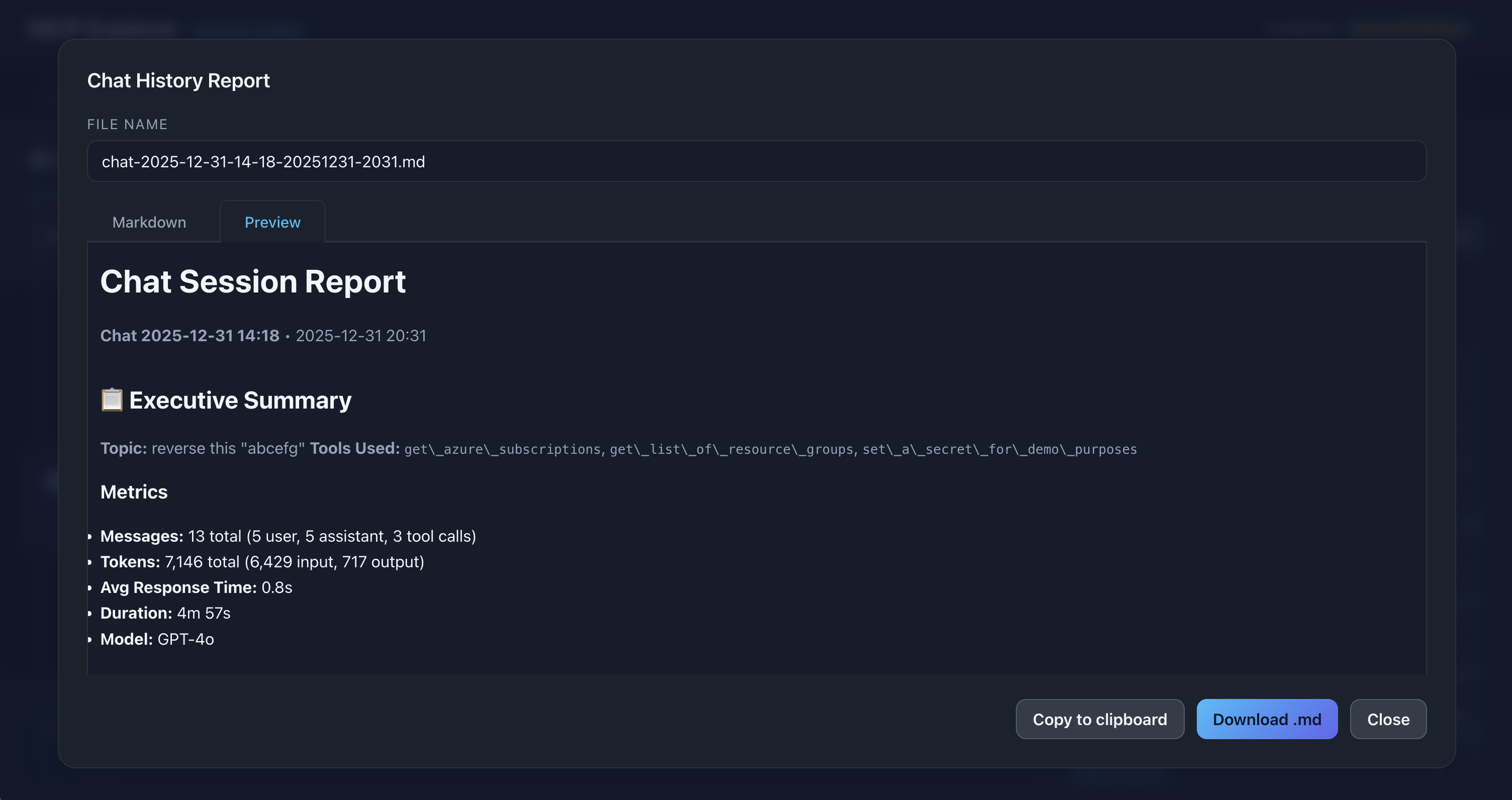
Description: Show the chat history in markdown, with executive summary and metrics, followed by the full transcript
Chat Input Features
Always at Bottom
The chat input box stays fixed at the bottom of the screen for easy access, even as messages scroll.
Multi-line Input
Press Shift + Enter to add new lines without sending.
Auto-focus
Input box is automatically focused when you:
- Open the Chat tab
- Send a message
- Dismiss a modal
Common Workflows
Quick Question Answering
- Type a simple question
- AI answers directly (no tool calls needed)
- Continue with follow-up questions
Example:
User: “What is MCP?”
AI: “Model Context Protocol (MCP) is a standardized protocol for…”
Tool-Assisted Research
- Ask a question requiring external data
- AI calls appropriate tool(s)
- AI synthesizes tool results
- You get a comprehensive answer
Example:
User: “Get the latest stock price for AAPL”
AI: [calls get_stock_price tool]
AI: “Apple (AAPL) is currently trading at $185.32…”
Multi-Step Problem Solving
- Ask a complex question
- AI breaks it into steps
- AI calls multiple tools sequentially
- AI combines results
- You get a complete solution
Example:
User: “Find recent GitHub issues for my repo and summarize the top 3”
AI: [calls list_issues tool]
AI: [reads issue details]
AI: “Here are the top 3 issues: 1. Bug in authentication…”
Using Prompts in Chat
- Type
/promptto browse prompts - Select a pre-configured prompt
- Fill in any arguments
- Send to AI for immediate execution
Example:
User:
/prompt code_review
Modal: Select “code_review” prompt, enter code
Input: [prompt text inserted]
AI: “Here’s my code review…”
Troubleshooting
AI Not Calling Tools
Problem: AI responds without using available tools
Solutions:
- Ensure connections are checked and connected
- Verify tools are actually available (check Tools tab)
- Be more explicit: “Use the get_weather tool to…”
- Check model supports function calling (older models may not)
Streaming Stops Mid-Response
Problem: Response appears to freeze or cut off
Solutions:
- Check network connection
- Verify API key is valid and has credits
- Check for rate limiting errors in console
- Try a different model
- Reduce conversation length (context window limits)
Sensitive Data Not Detected
Problem: Passwords/keys shown in plain text
Solutions:
- Use recognized keywords (
password,key,token,secret) - Enable AI detection in Sensitive Fields settings
- Add custom keywords to Additional Sensitive Fields
- Use quotes around sensitive values for better detection
Tool Parameters Not Showing
Problem: JSON icon click doesn’t show parameters
Solutions:
- Ensure tool call actually completed
- Check browser console for errors
- Verify the tool call returned parameter data
- Refresh page and retry
Tips & Best Practices
🎯 Be Specific
The more specific your request, the better the AI can select and use tools.
🔗 Enable Relevant Connections
Only check connections with tools you need for the conversation to reduce noise.
💰 Monitor Token Usage
Watch the token counts to manage API costs, especially with long conversations.
🔄 Use Message History
Press Up Arrow to quickly retry or adjust previous prompts.
📋 Export Important Chats
Save conversations that contain valuable insights or test results.
🔒 Review Sensitive Data
Check what’s being redacted to ensure proper protection.
🛠️ Test Tools First
Execute tools manually in the Tools tab before relying on AI to use them.