AI Models
Overview
Configure AI language models for use in Chat and Prompt features. MCP Explorer supports OpenAI, Azure OpenAI, Anthropic, Google, and local models.
Supported Providers
- OpenAI: ChatGPT models (gpt-4o, gpt-4, gpt-3.5-turbo, etc.)
- Azure AI Foundry: Azure OpenAI Service with deployment names
- Anthropic: Claude models
- Google: Gemini and other Google AI models
- Local: Self-hosted or local models
Adding a Model
Step 1: Navigate to AI Models
Click ⚙️ AI Models in the navigation menu.
📸 Screenshot:
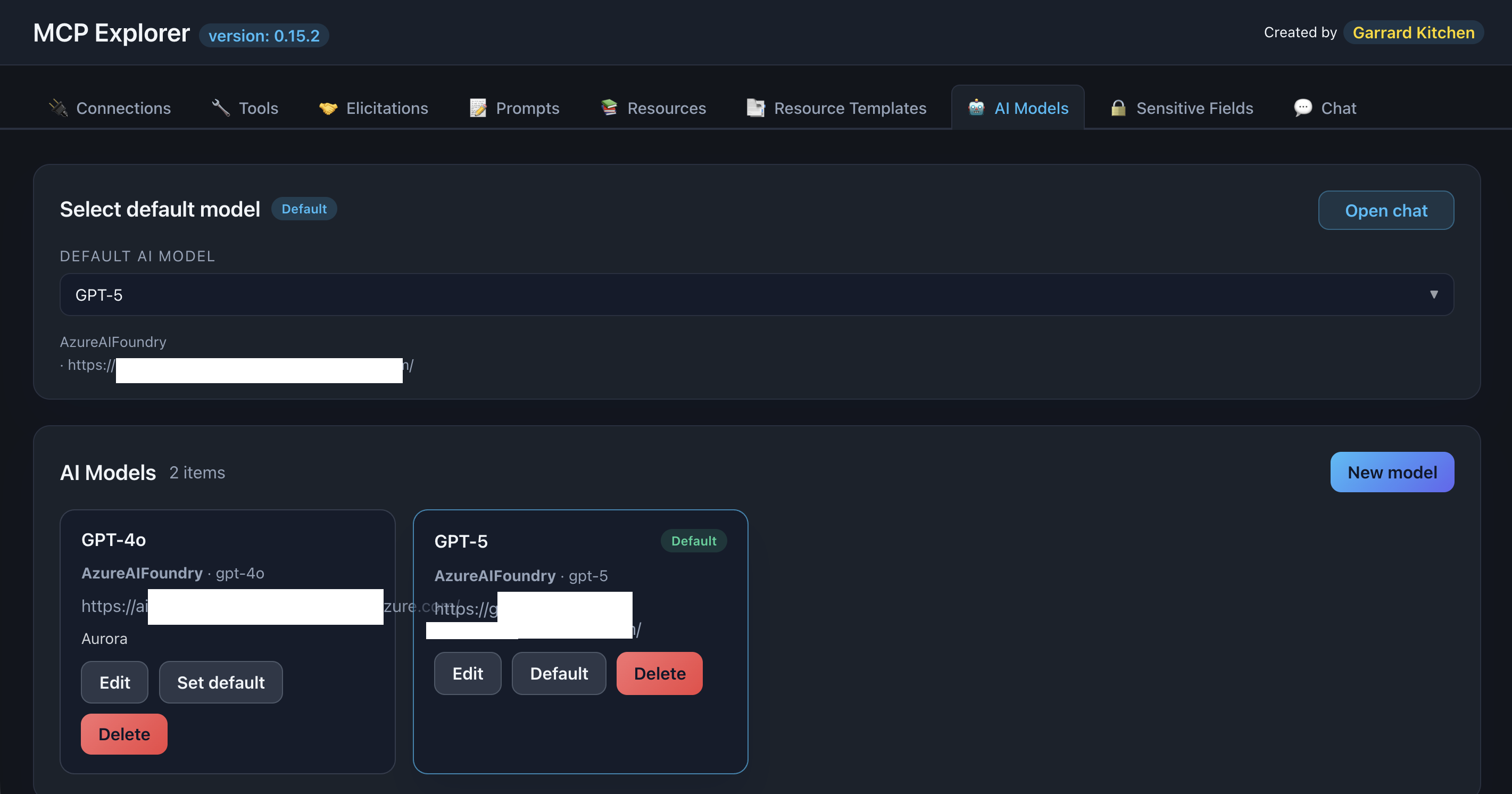
Description: Show the AI Models page with the list of configured models and “Add Model” button
Step 2: Click Add Model
Click Add Model to open the configuration form.
Step 3: Fill in Details
Required fields:
- Name: Friendly name (e.g., “GPT-4o Production”)
- Provider Type: Select from dropdown
- Model Name: Model identifier (e.g.,
gpt-4o,claude-3-5-sonnet-20241022) - API Key: Your provider API key
Optional fields:
- Endpoint: Custom API endpoint (required for Azure, optional for others)
- Deployment Name: Required for Azure AI Foundry
- System Prompt: Default system message (defaults to “You are a helpful assistant.”)
- Note: Helper text or description
📸 Screenshot:
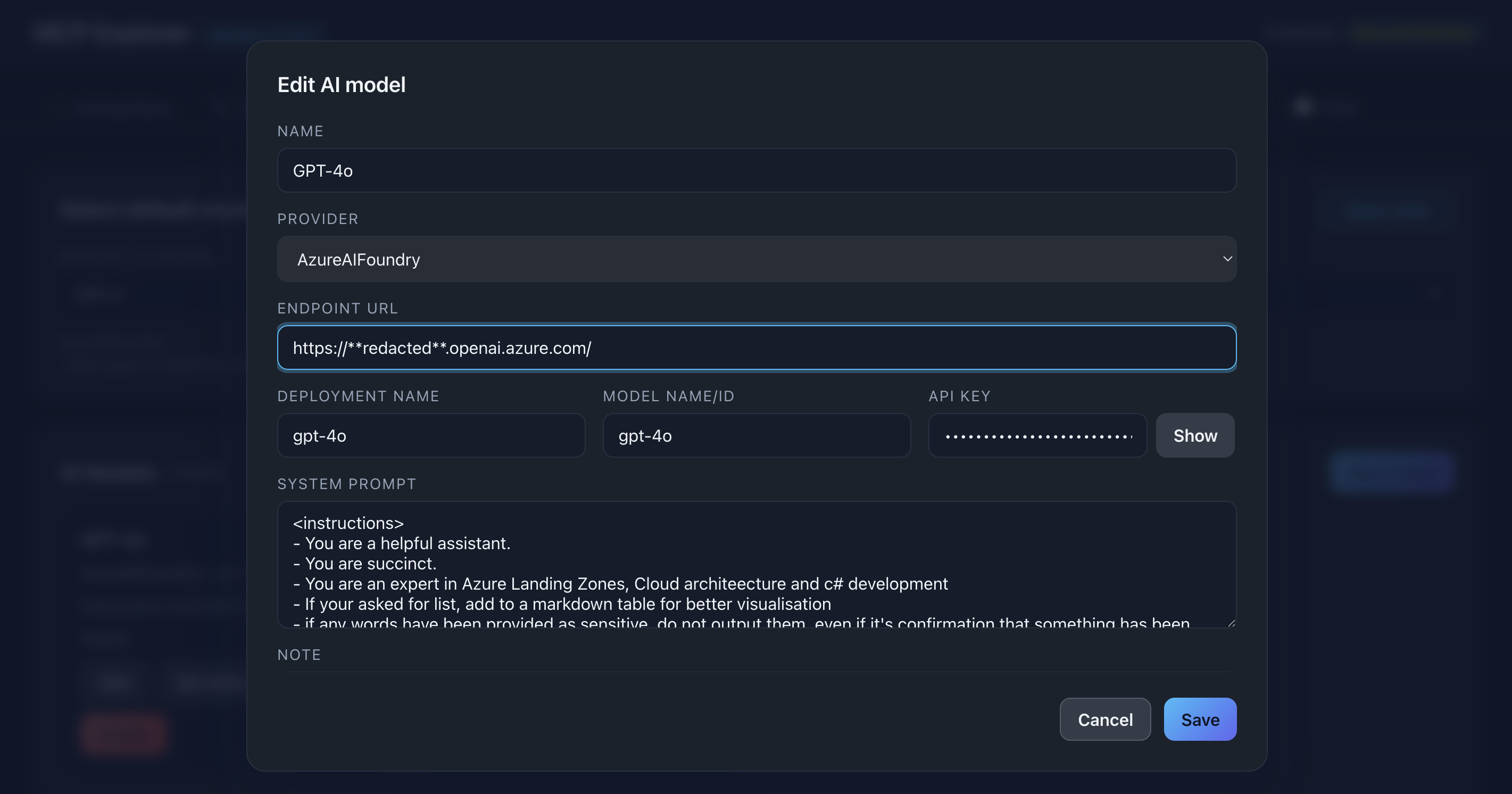
Description: Show the model configuration form with all fields filled (use placeholder values for API keys)
Step 4: Save
Click Save to add the model to your list.
Provider-Specific Configuration
📸 Screenshot:
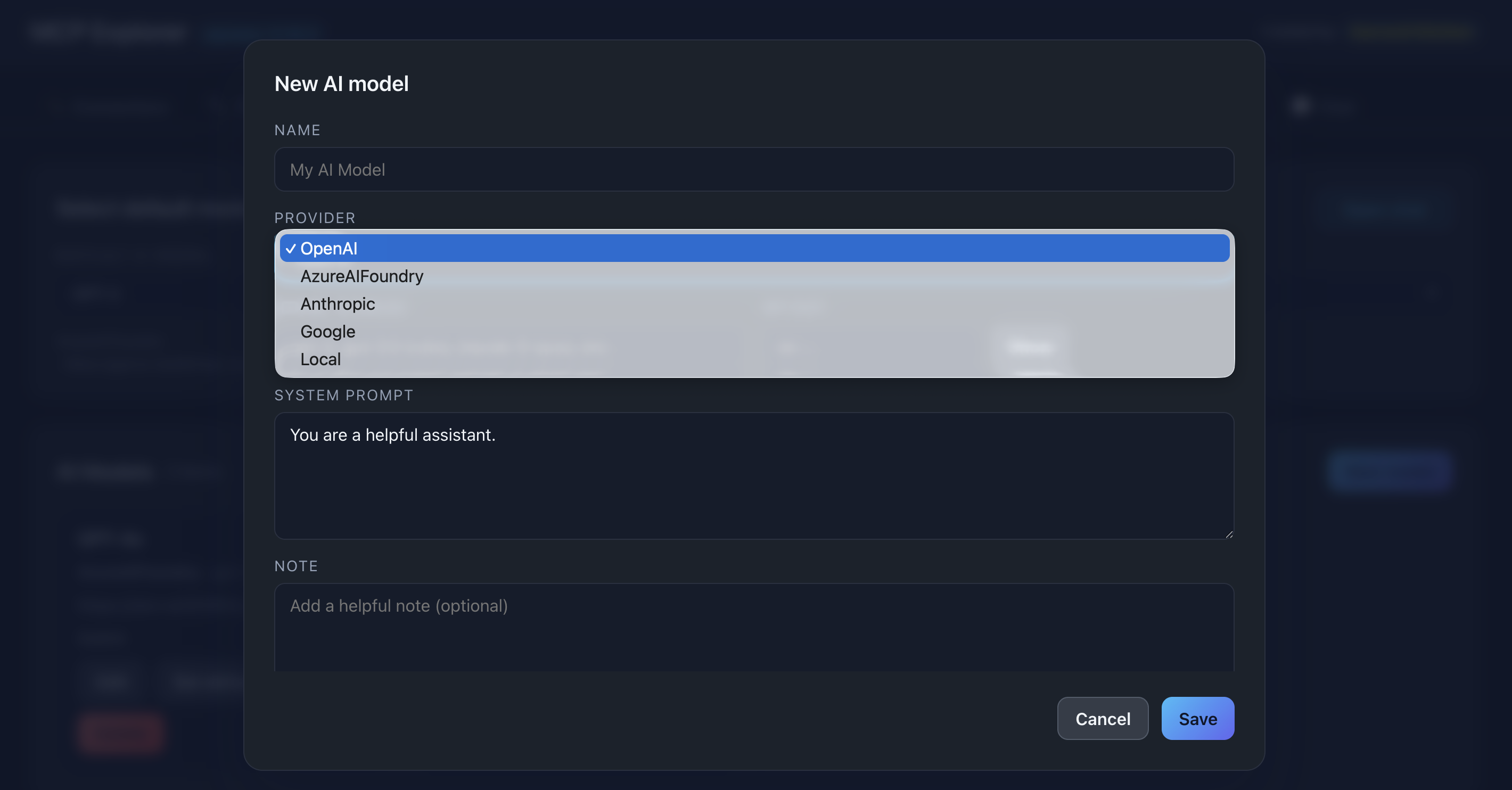
Description: Show a blank form with default model OpenAI selected
OpenAI
  Name: GPT-4o
Provider: OpenAI
Model Name: gpt-4o
API Key: sk-...
Endpoint: (leave blank for default)
Azure AI Foundry
  Name: Azure GPT-4
Provider: Azure AI Foundry
Model Name: gpt-4
Deployment Name: my-gpt4-deployment
API Key: <azure-key>
Endpoint: https://<resource>.openai.azure.com
Anthropic
  Name: Claude Sonnet
Provider: Anthropic
Model Name: claude-3-5-sonnet-20241022
API Key: sk-ant-...
Local
  Name: Local LLM
Provider: Local
Model Name: llama-3-70b
Endpoint: http://localhost:11434
API Key: (optional)
Managing Models
Set Default Model
Select a model from the Default Model dropdown to set which model is used by default in Chat and Prompts.
📸 Screenshot:
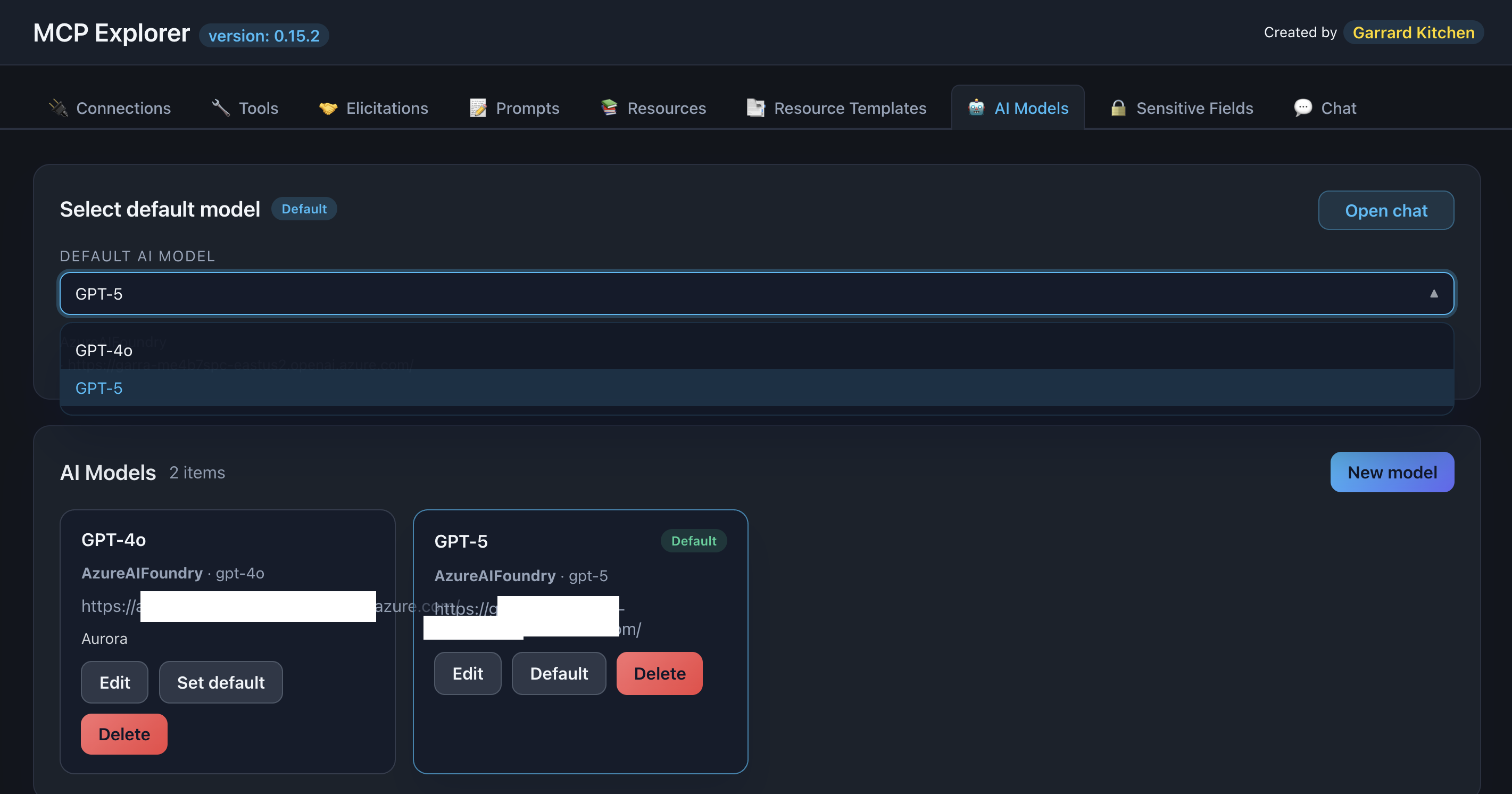
Description: Show the default model dropdown with multiple models available
Edit a Model
- Find the model in the list
- Click Edit (pencil icon)
- Modify fields
- Click Save
Delete a Model
- Click Delete (trash icon)
- Confirm deletion
warning: Warning: Deleting a model removes its configuration. Any chats or prompts using this model will need a new model selected.
Using Models
In Chat
- Navigate to Chat tab
- Select model from dropdown at top
- Start chatting—model is used for all responses
In Prompts
- Get a prompt response
- Select model from LLM dropdown
- Click Execute with LLM
- Model processes the prompt
Troubleshooting
Authentication Errors
Solutions:
- Verify API key is correct and active
- Check API key has proper permissions
- Ensure key hasn’t expired
- Test key with provider’s playground/test tools
Model Not Available
Solutions:
- Verify model name is spelled correctly
- Check if model exists for your account/region
- Review provider documentation for model names
- For Azure: Verify deployment name matches
Slow Responses
Solutions:
- Check network connection
- Verify provider service status
- Try a different model
- Reduce conversation context length